Connecting Amplitude to Bicycle
Connect Amplitude so Bicycle agents can read and act on your product analytics — charts, dashboards, notebooks, experiments, cohorts, feature flags, events, and Session Replay — through the Amplitude MCP server.
Amplitude supports one authentication method in Bicycle: OAuth. There is no API key option and nothing to copy or paste. You authorize once in a popup, and Bicycle stores the resulting tokens.
The Amplitude MCP server runs with your existing Amplitude user permissions. Bicycle gets no additional access beyond what the authorizing user can already view in Amplitude. Connect with an account that can see the projects you want Bicycle to reason about.
Requirements
To follow the steps in this guide, you'll need:
- Permission to create connectors in Bicycle
- An Amplitude account with access to the projects Bicycle should use
- Amplitude data in the US region — see Region support
- MCP features enabled for your Amplitude organization (they are on by default)
- An Amplitude role that grants Use MCP (read) — Amplitude requires it to use the MCP server at all — plus Use MCP (write) if Bicycle should create or update Amplitude content
- Pop-ups allowed in your browser for the Bicycle app
- Amplitude MCP Server — regions, tools, admin controls, RBAC actions, and troubleshooting
- Amplitude MCP OAuth authorization server metadata — the authoritative list of supported scopes
- Amplitude MCP marketplace
How the OAuth connection works
| Detail | Value |
|---|---|
| MCP endpoint Bicycle connects to | https://mcp.amplitude.com/mcp |
| Authorization URL | https://mcp.amplitude.com/authorize |
| Token URL | https://mcp.amplitude.com/token |
| Flow | OAuth 2.0 authorization code with PKCE (S256) |
| Client type | Public client — Bicycle holds no Amplitude client secret |
| App registration | None required. You do not create an Amplitude OAuth app, and you do not paste any credentials into Bicycle. |
When you start the connection, Bicycle opens a popup to Amplitude's authorization page, you approve the request, and Amplitude returns an authorization code to Bicycle. Bicycle exchanges it for an access token and a refresh token, then immediately connects to the Amplitude MCP server to verify the connection and list the tools it discovered.
Permissions Bicycle requests
Bicycle requests these three scopes automatically. They are the complete set of scopes the Amplitude MCP authorization server supports.
| Scope | What it allows | Why Bicycle requests it |
|---|---|---|
mcp:read | Read Amplitude content and run queries — charts, dashboards, notebooks, experiments, cohorts, feature flags, events, properties, and Session Replay | Required for CAUSE work: Bicycle reads Amplitude as investigative evidence during root-cause analysis |
mcp:write | Create and update Amplitude content — charts, dashboards, cohorts, experiments, flags, metrics, and tracking-plan changes | Required for ACTION work: Bicycle creates or updates Amplitude objects on your behalf |
offline_access | Issue a refresh token | Lets Bicycle renew the access token in the background so you don't have to reconnect when the short-lived access token expires |
The Amplitude connector is registered for both CAUSE and ACTION capabilities, so mcp:write is included in every authorization request. If you only use Bicycle to read Amplitude, the scope is granted but never exercised.
To enforce read-only access at the source rather than relying on usage, authorize with an Amplitude user whose role grants Use MCP (read) but not Use MCP (write). Amplitude then rejects write tool calls even though the scope was granted. See Check the authorizing user's role for MCP actions under Before you connect.
Before you connect: Amplitude-side checks
The first two steps below are Amplitude organization settings; the third is about your browser session. If your organization has never changed the MCP settings, the defaults already allow access — confirm the third step and skip ahead to Setup in Bicycle.
Confirm MCP features are enabled for your organization
Amplitude enables MCP access by default for all users in an organization, but an org administrator can turn it off.
- In Amplitude settings, under Privacy & Security, select Content Access.
- On the Manage Content Access page, open the Model Context Protocol (MCP) tab.
- Confirm the toggle reads MCP features are enabled.
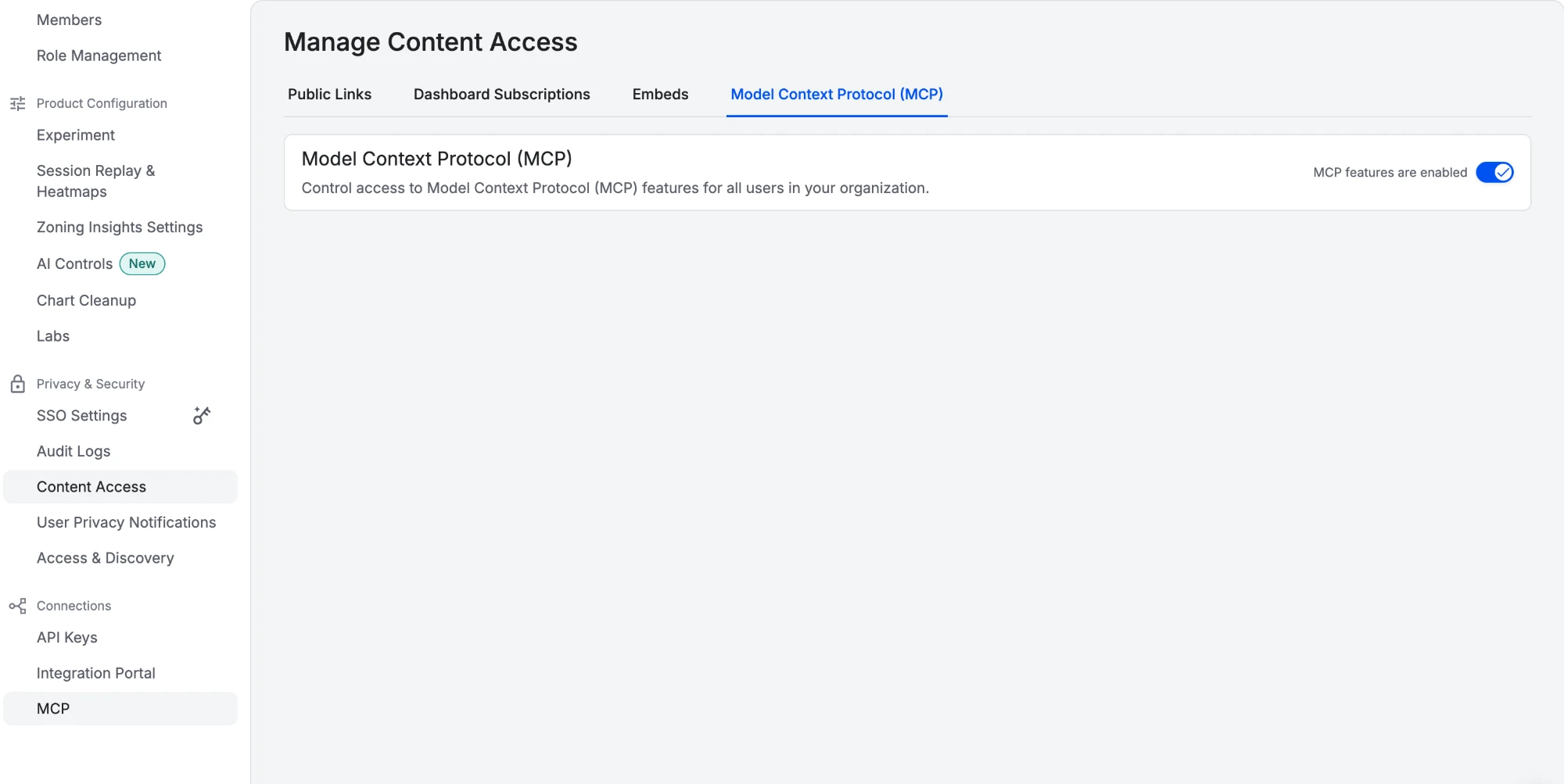
This is an admin-only setting and it controls MCP access "for all users in your organization" — every MCP client, every user. An individual user cannot override an organization-level block, so if this toggle is off, the Bicycle connection will fail no matter which account you authorize with.
Check the authorizing user's role for MCP actions
Amplitude governs MCP access per project with two role actions: Use MCP (read) (USE_MCP_READ) and Use MCP (write) (USE_MCP_WRITE).
- In Amplitude settings, select Role Management.
- Open the role assigned to the user who will authorize the Bicycle connection.
- In the category list on the left, select AI Features.
- Confirm the two MCP toggles are set the way you want:
| Toggle | Amplitude's description | Needed for |
|---|---|---|
| Use MCP (read) — Basic | "Call read-only Amplitude MCP tools (search, get, query). Required to use the MCP server at all." | Mandatory. Without it the Bicycle connection cannot work at all. |
| Use MCP (write) — Advanced | "Call Amplitude MCP tools that create, update, or delete content (charts, dashboards, cohorts, etc.)" | Only if Bicycle should write to Amplitude (ACTION) |
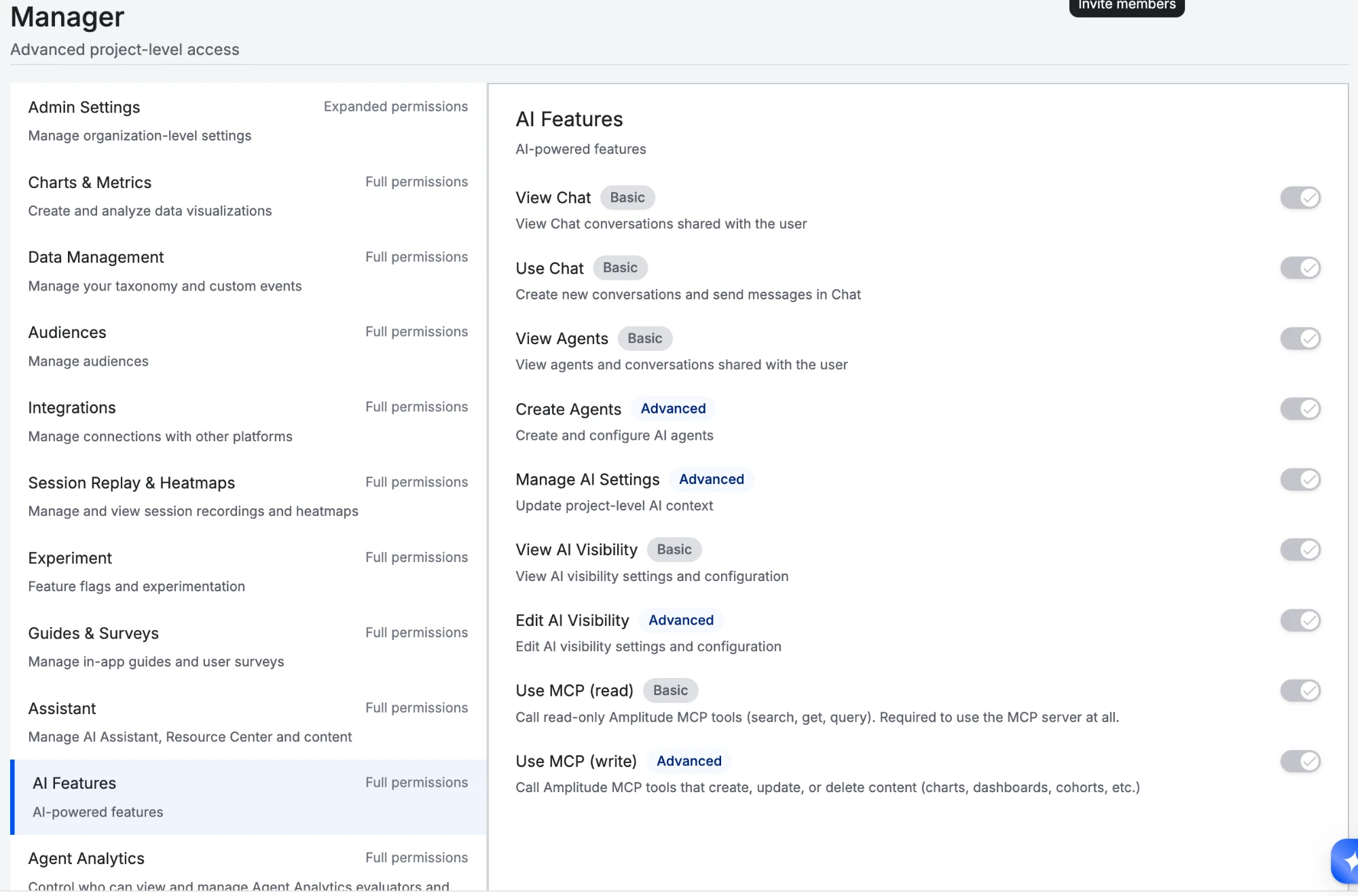
Amplitude's defaults:
- Every existing role grants read access.
- The Member, Manager, and Admin roles also grant write access.
- These actions override admin status — if a role doesn't grant the action, MCP calls fail even for an org administrator.
Amplitude enforces these actions per project, on every tool call. Within a single Bicycle session, a read of one project can succeed while the same read fails for a project the role doesn't cover. The tool list stays visible either way, so a disallowed call fails at call time rather than disappearing.
Sign in to only one Amplitude organization
Before you start the Bicycle flow, make sure the browser is signed in to only the Amplitude organization you want to connect. Amplitude documents that being signed in to multiple organizations during the OAuth flow can cause authentication issues.
If you belong to several organizations, sign out of Amplitude and sign back in to just the target organization, then start the Bicycle connection.
Setup in Bicycle
Open Connectors and select Amplitude
In Bicycle, go to Connectors. Find Amplitude and click + Connect.
Continue past the method step
Amplitude is an MCP connector, so Bicycle shows the note This connector uses MCP (Model Context Protocol) for agent tools. Under Connector method, OAuth is already selected and cannot be changed — it is the only method Amplitude supports.
Click Next.
Enter the connection details
On the Configure MCP Connection step, the subtitle reads Amplitude - MCP (OAuth). Fill in the connection details:
Connection NameRequiredA name that tells this connection apart from other Amplitude connections at a glance — it appears in Bicycle's connector list and whenever someone picks a connection for an agent. Name the Amplitude organization it points at, and the environment if you connect more than one: for example Amplitude Prod — acme-224553 or Amplitude Sandbox — acme-dev. The organization slug is the one Amplitude shows on the authorization screen in the next step (such as bicycle-224553), so recording it here makes it easy to confirm later which organization a connection is bound to.
Connection TypeOnly shown when Bicycle hasn't already determined the capability from where you started the flow. When it appears, select CAUSE for read-only investigative use, ACTION for write operations, or both.
The OAuth authorization panel below confirms the next step: Fill in the connection details above, then click Go to OAuth to sign in with Amplitude. Go to OAuth stays disabled until the required details are filled.
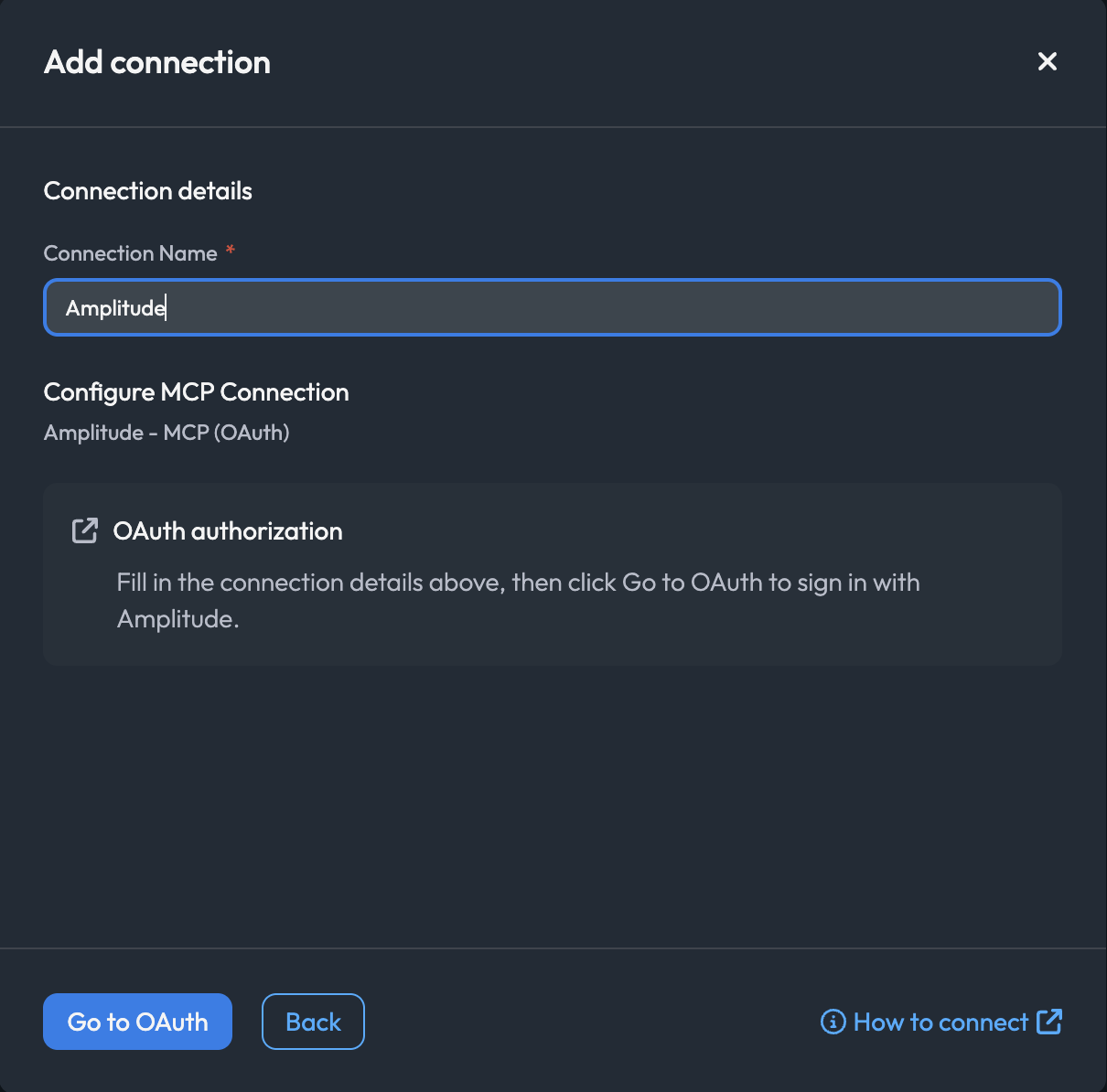
Authorize in Amplitude
Click Go to OAuth. Bicycle opens a popup to Amplitude's authorization page and the main window shows Waiting for authorization...
In the popup:
- Sign in to Amplitude if you are not already signed in.
- Amplitude shows Authorize [MCP] Bicycle AI and asks Allow [MCP] Bicycle AI to access your Amplitude account for
<your-org>? - Check that the account named in that question is the Amplitude organization you intend to connect. This is your only chance to catch a wrong-organization authorization.
- Click Authorize.
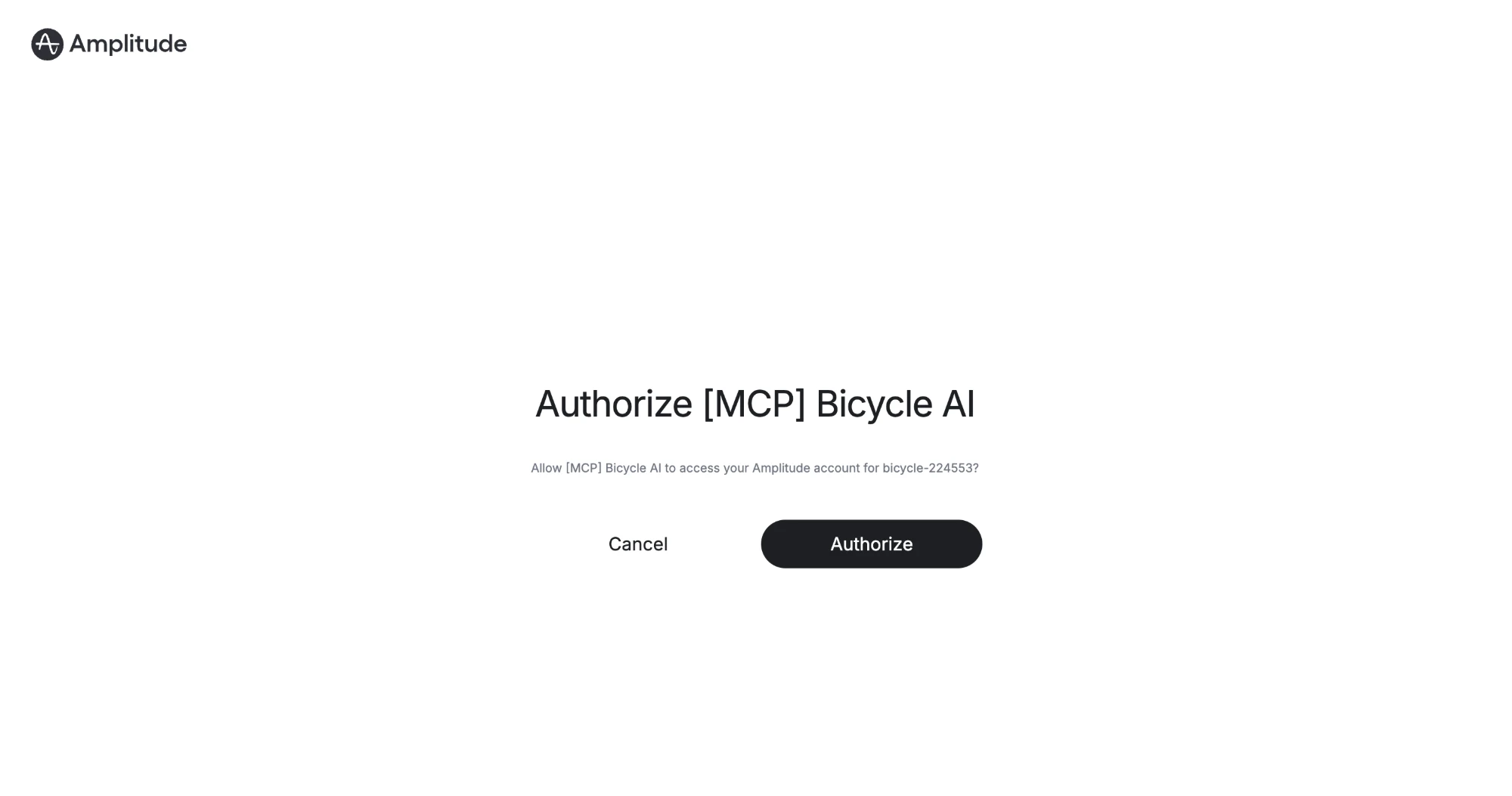
Amplitude's authorization page shows only the app name and the target account — it does not itemize mcp:read, mcp:write, and offline_access. Those scopes are still what Bicycle requests; see Permissions Bicycle requests for the full list and what each one allows.
Leave the Bicycle window open. It updates automatically when authorization completes. If you close the popup by accident, click Cancel Authorization and start again.
Amplitude notes that the authorization page can appear to spin indefinitely after you approve. If that happens, close the popup tab — the authorization has usually already completed, and Bicycle continues on its own.
Review the verification result
When the popup closes, Bicycle exchanges the code for tokens and immediately tests the Amplitude MCP server. On success you'll see Connection verified successfully followed by Discovered Tools and a scrollable list of every Amplitude tool now available to Bicycle agents, each with its description.
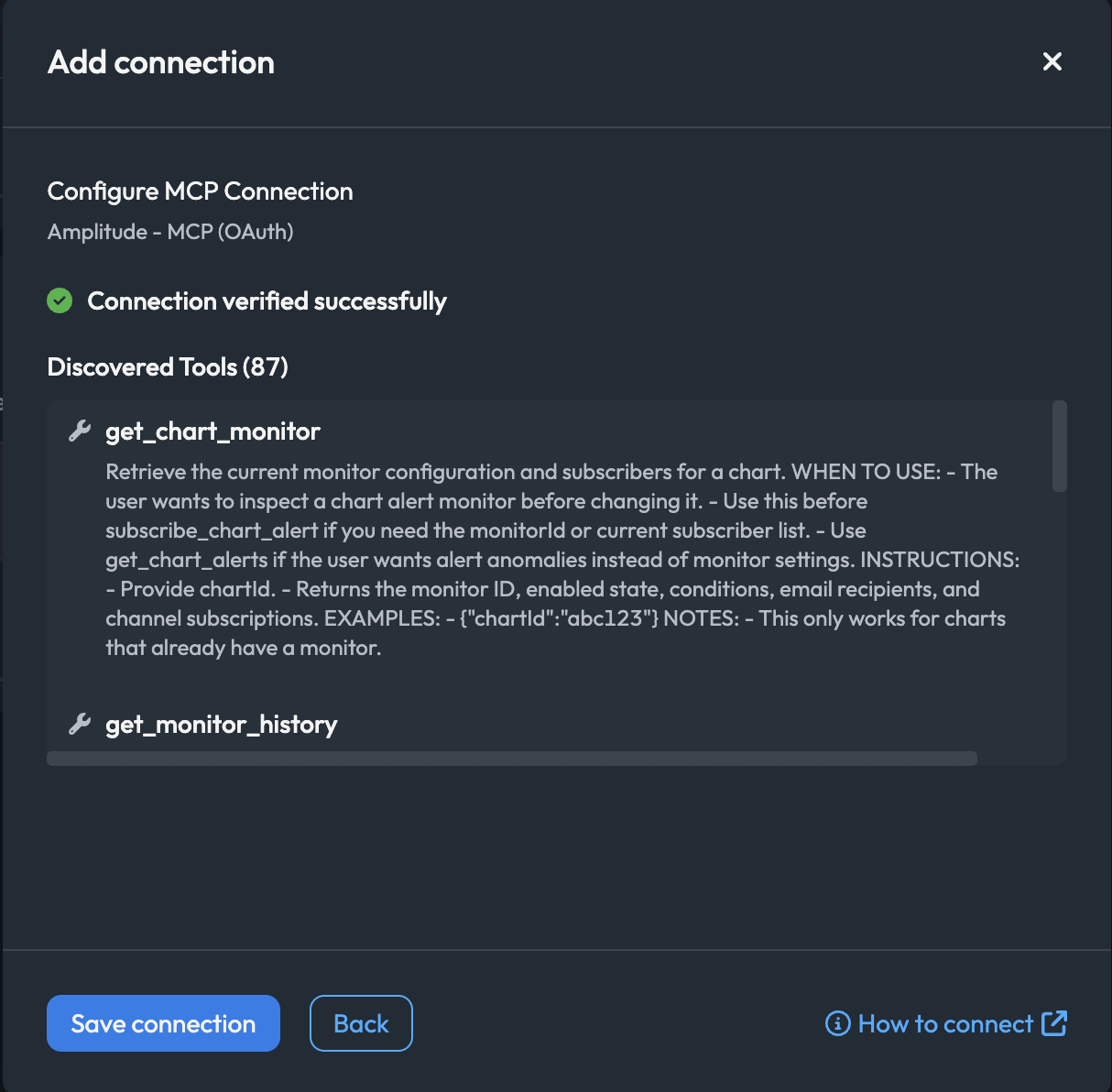
Amplitude exposes a large tool surface — the example above discovered 87 tools. The exact count changes as Amplitude adds and revises tools, so treat the number as informational rather than something to match.
Save the connection
Click Save connection. Bicycle shows Connection successfully added! with the connection name, ID, method (OAuth), and creation details. Click Close to return to the Connectors page.
Region support
Amplitude runs two MCP servers:
| Amplitude region | MCP server URL | Supported in Bicycle |
|---|---|---|
| United States (default) | https://mcp.amplitude.com/mcp | Yes |
| EU residency | https://mcp.eu.amplitude.com/mcp | Not yet |
Bicycle's Amplitude connector currently targets the US server only. The EU residency server is a separate OAuth issuer, so it needs its own connector configuration.
If your Amplitude data resides in the EU, this connector will not reach it. Contact Bicycle support before setting up the connection.
Things to know before you connect
- The connection is scoped to the authorizing user. Access follows that person's Amplitude permissions and role. If they leave the organization or their role changes, the connection's effective access changes with it. Consider authorizing with an account intended for integrations rather than an individual's personal account.
- Amplitude MCP is not an ingestion path. It reads and edits Amplitude content; it does not send event data. Amplitude directs production event ingestion to its SDKs or the HTTP V2 API.
- AI models process the data returned. Amplitude notes that the AI service handling your Amplitude data is a third party, and that Amplitude is not responsible for model outputs. Review this against your organization's policies for AI-powered data analysis, including GDPR and CCPA obligations.
- Amplitude applies rate limits to MCP requests. Very broad queries may be throttled or truncated; narrower questions are more reliable.
- Re-authorization after scope changes. If Bicycle's requested scopes change in a future release, existing connections keep their originally granted scopes until you reconnect.
Troubleshooting
| Error or symptom | Likely cause | Fix |
|---|---|---|
| The popup never opens, or Bicycle reports the sign-in popup was blocked | Browser pop-up blocker | Allow pop-ups for the Bicycle app, then click Go to OAuth again |
| Go to OAuth is greyed out | Connection Name or Connection Type is empty | Fill in both fields on the Configure MCP step |
| Authorization page spins forever after approving | Known Amplitude behaviour on the authorization page | Close the popup tab; Bicycle usually already has the authorization and continues |
| Authorization fails or lands on the wrong organization | Signed in to more than one Amplitude organization, or the wrong account | Sign out of Amplitude, sign back in to only the target organization, and retry |
| You wait too long on the consent screen and the connection fails | Bicycle's OAuth request is valid for 10 minutes | Start the connection again and complete authorization promptly |
| Connection verification fails right after authorization | MCP blocked for the organization, or the user's role lacks Use MCP (read) | Check Settings → Content Access → MCP, then the role's AI Features actions in Org Settings → Role Management |
| Tools appear, but calls fail for some projects | Role grants the MCP action on some projects only — Amplitude enforces per project, per call | Extend the role's project scope, or connect with a user who has access to the projects you need |
| Write operations fail while reads work | Role lacks Use MCP (write) | Enable Use MCP (write) on the role, or keep the connection read-only and use CAUSE capabilities |
| Data you can see in Amplitude is missing in Bicycle | The authorizing user lacks access to that project | Confirm the user's project access in Amplitude, or reconnect with an account that has it |
| Connection stops working after some time | Refresh token revoked, or the authorizing user's access was removed | Reconnect the Amplitude connector via OAuth |
Capabilities
| Capability | Description |
|---|---|
| CAUSE | Read Amplitude charts, dashboards, notebooks, experiments, cohorts, feature flags, events, properties, and Session Replay as investigative evidence |
| ACTION | Create and update Amplitude content — charts, dashboards, cohorts, experiments, feature flags, metrics, and tracking-plan changes |
What's next?
Now that Amplitude is connected, you can:
- Use Amplitude analytics as evidence during root-cause analysis — query charts and metrics, compare cohorts, and pull Session Replay context
- Have Bicycle create or update Amplitude content, such as cohorts, charts, and dashboards, when the connection includes ACTION
- Combine Amplitude with your other connected sources so a single investigation spans product analytics and operational data