Connecting Google BigQuery to Bicycle
Learn how to create a service account, generate a private key, and connect your Google BigQuery project to Bicycle.
Requirements
To follow the steps in this guide, you'll need:
- Permission to create connectors in Bicycle
- A Google Cloud project with the BigQuery API enabled
- A service account with the required BigQuery roles
- A downloaded service account JSON key
Prepare BigQuery access
Create a dedicated service account for Bicycle. Do not use personal Google Cloud credentials for production connections.
Create a service account and grant access
- Go to the Google Cloud Console.
- Select the project that contains the BigQuery datasets Bicycle should read.
- Navigate to IAM & Admin > Service Accounts.
- Click Create service account.
- Give the service account a recognizable name, such as
bicycle-bigquery-reader. - Click Create and continue.
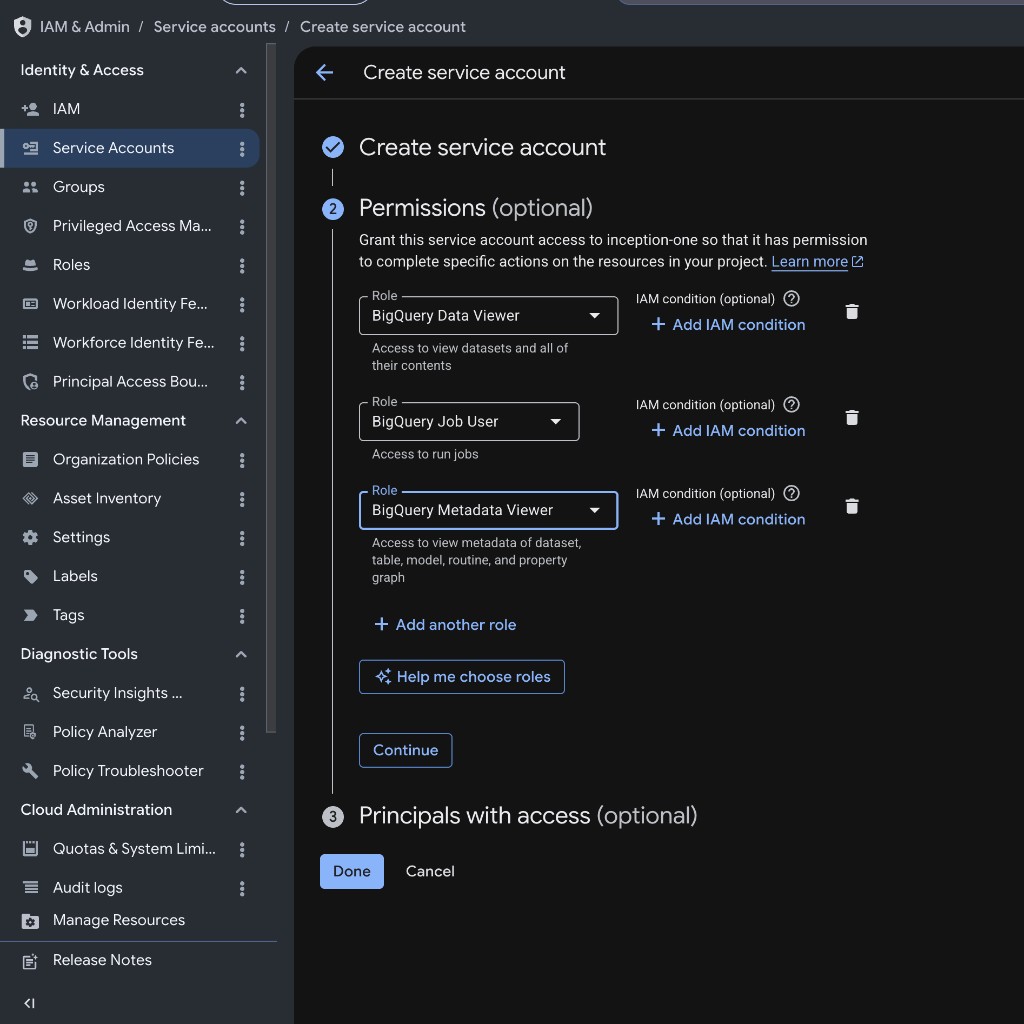
- Grant the service account the following roles:
- BigQuery Data Viewer (
roles/bigquery.dataViewer) on the datasets Bicycle should read - BigQuery Job User (
roles/bigquery.jobUser) at the project level
- BigQuery Data Viewer (
- Click Done.
Create a JSON key
- Open the service account.
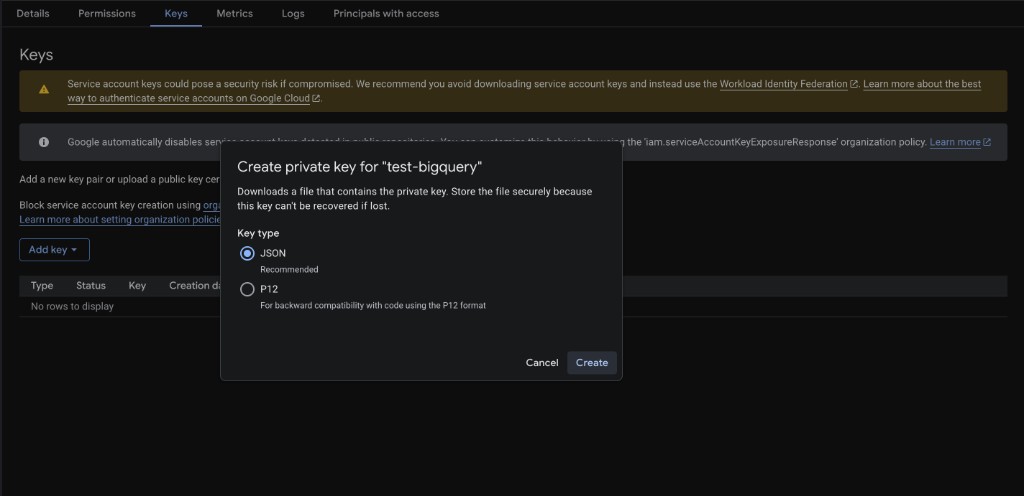
- Go to Keys > Add key > Create new key.
- Select JSON, then click Create.
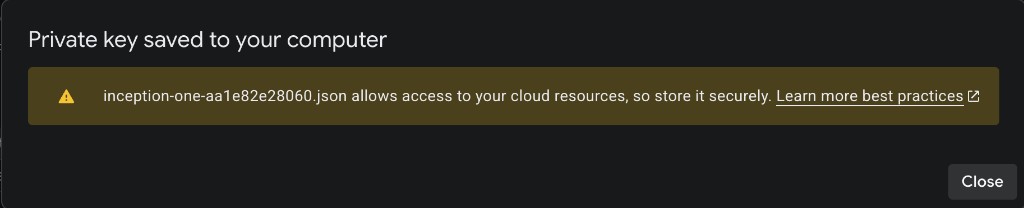
- Download the JSON key file and keep it secure.
Setup in Bicycle
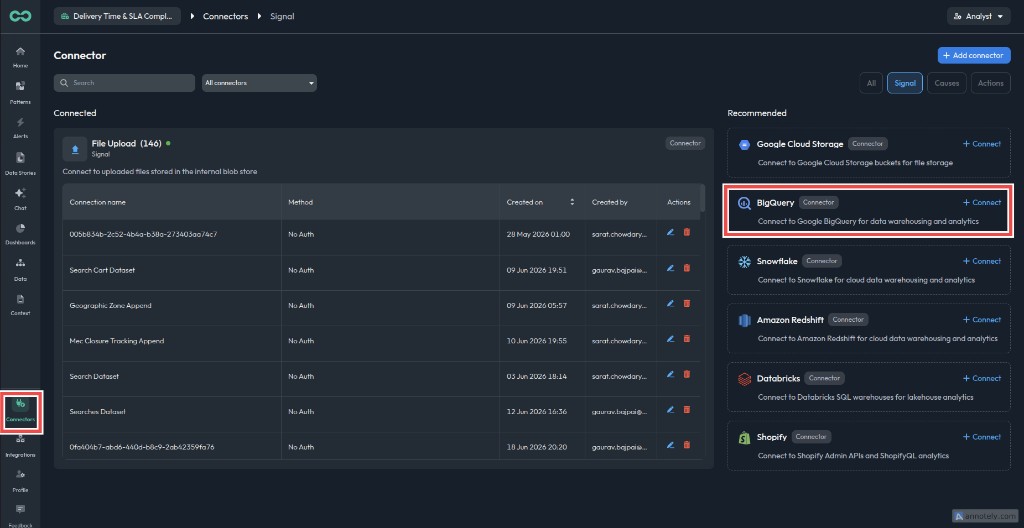
Open Connectors and select BigQuery
In Bicycle, go to Connectors. Under Recommended, find BigQuery and click + Connect.
Choose Service Account
Enter a connection name that identifies the environment, such as BigQuery Production. Select Service Account as the Connector method, then click Next.
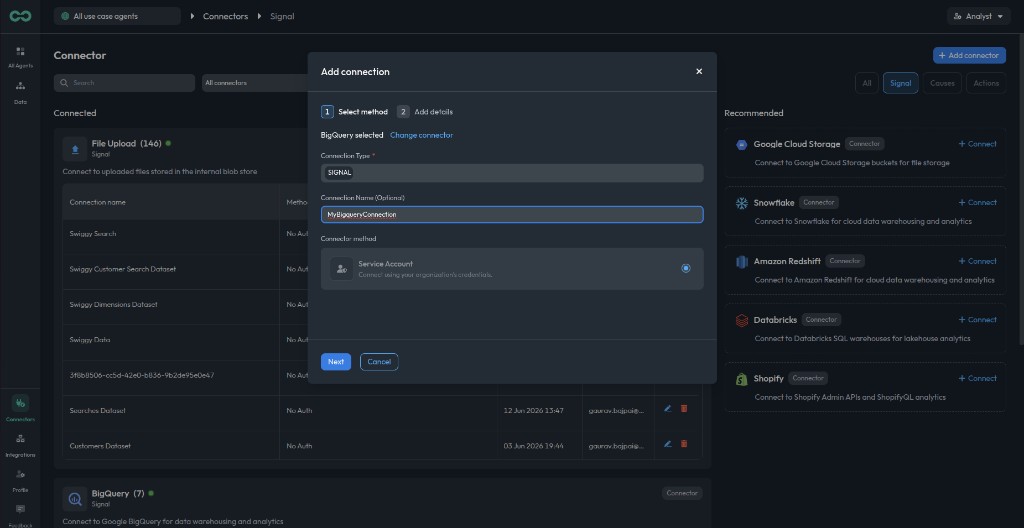
Add BigQuery connection details
On the Add details step, fill in the BigQuery connection fields and paste the service account JSON key.
Project IDRequiredGoogle Cloud project ID for the BigQuery project Bicycle should query
DatasetDataset to discover. If omitted, Bicycle discovers all datasets the service account can list in the project
Table PatternRegex used to filter discovered table names, for example orders_.*
Service Account JSONRequiredFull contents of the downloaded JSON key file
Key IDNon-sensitive key identifier from the JSON key
Service Account EmailService account email, such as bicycle-bigquery-reader@project.iam.gserviceaccount.com
Service Account Project IDProject ID from the service account JSON key
Example values:
- Project ID:
my-gcp-project - Dataset:
analytics - Table Pattern:
orders_.* - Service Account JSON: paste the full JSON key contents
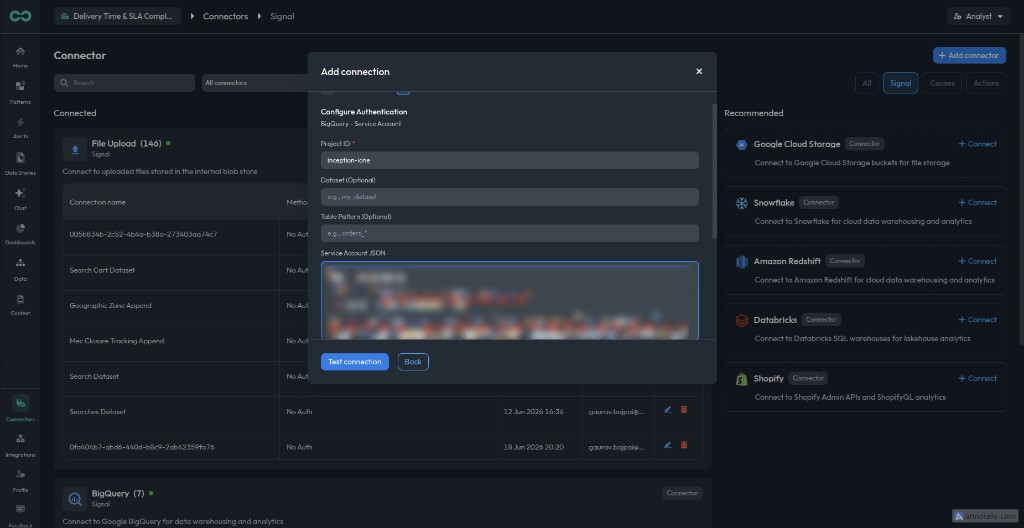
Test the connection
Click Test connection. When the test succeeds, you will see Ready to add this connection.
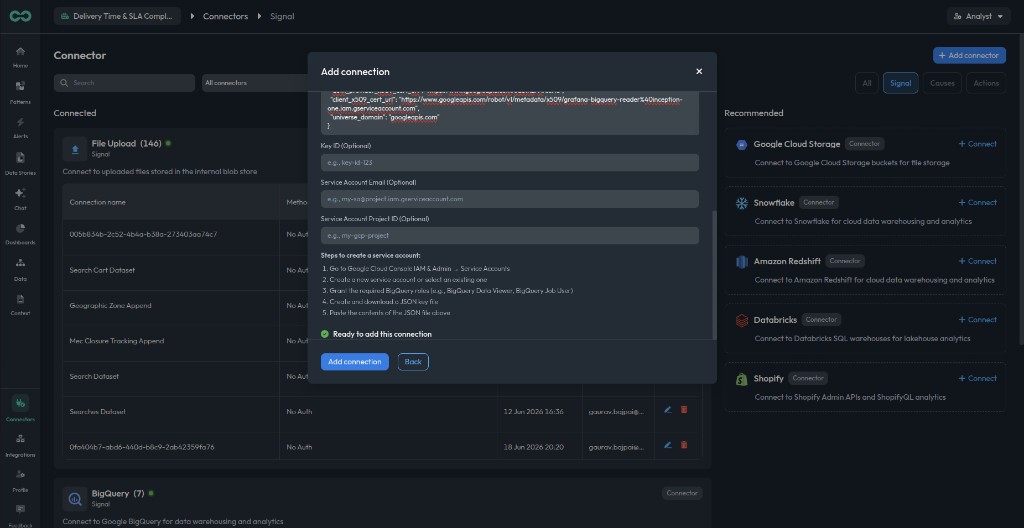
Add the connection
Click Add connection. When the connection is created successfully, you will see a confirmation with the connection name, ID, and method (Service Account). Click Close to return to the Connectors page.
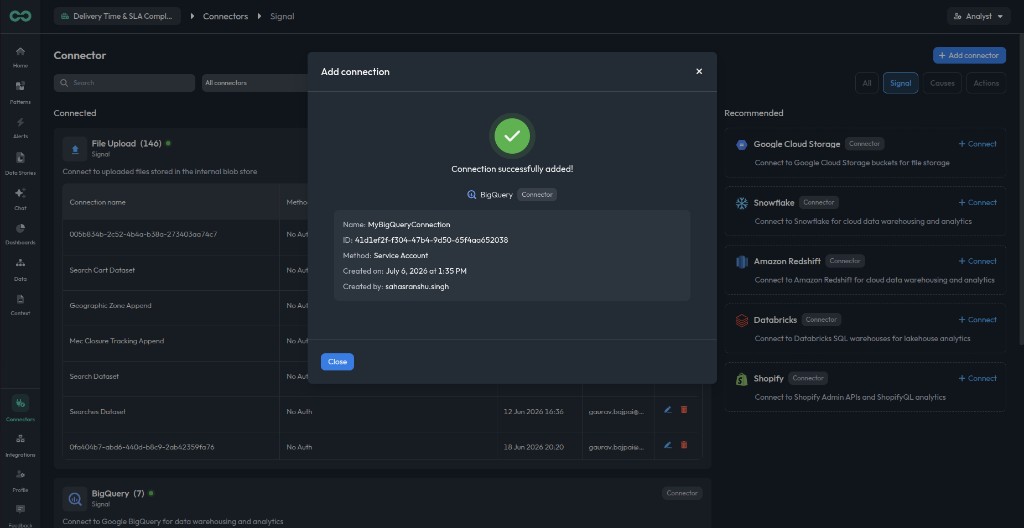
Troubleshooting
If Test connection fails, check the following.
| Error or symptom | Likely cause | Fix |
|---|---|---|
Service account key JSON is missing | The Service Account JSON field is empty | Paste the full JSON key contents from the service account key file |
Project ID is required | The Project ID field is empty | Enter the Google Cloud project ID that contains the target BigQuery datasets |
| Failed to connect to BigQuery | Invalid JSON key, disabled service account, missing BigQuery API, or insufficient IAM permissions | Confirm the key is valid, the service account is active, BigQuery is enabled, and the required roles are granted |