Connecting Databricks to Bicycle
Connect to Databricks SQL warehouses for lakehouse analytics. Bicycle queries Unity Catalog tables using pushdown so analytics run against your warehouse.
Data in Databricks is organized as catalog → schema → table. Bicycle discovers tables from system.information_schema.tables and names streams as catalog/schema/table.
Requirements
To follow the steps in this guide, you'll need:
- Permission to create connectors in Bicycle
- A Databricks workspace with a running SQL warehouse
- Permission in Databricks to create or manage a service principal or personal access token (PAT), and to grant Unity Catalog privileges
- The warehouse Server hostname and HTTP path from the warehouse connection details
- If your workspace restricts access by IP or private network rules, allow Bicycle network access before connecting
Work with your Databricks administrator to provision access. In most organizations, a platform or data team runs the SQL grants below; an analyst or engineer then completes the connection in Bicycle.
| Item | Description |
|---|---|
| Server hostname | Workspace hostname for the SQL warehouse (for example, dbc-12345.cloud.databricks.com) |
| HTTP path | SQL warehouse HTTP path (for example, /sql/1.0/warehouses/abc123def456) |
| Port (optional) | Databricks port; defaults to 443 if omitted |
| Catalog (optional) | Unity Catalog name to scope discovery; omit to discover all accessible catalogs |
| Schema (optional) | Schema within the catalog; omit to discover all accessible schemas |
| Table Pattern (optional) | Regex used to filter table names during discovery |
| Authentication | API key (PAT) or OAuth (M2M) service-principal credentials |
Prepare Databricks access
Complete these steps once, regardless of which authentication method you use in Bicycle.
Retrieve SQL warehouse connection details
Collect the hostname and HTTP path from your SQL warehouse connection details.
- In your Databricks workspace, go to SQL Warehouses and open the warehouse Bicycle should use.
- Open the Connection details tab.
- Copy the Server hostname and HTTP path.
Follow the Databricks guide for getting connection details for a SQL warehouse.
Grant SQL warehouse access
The Databricks user or service principal must have CAN USE on the SQL warehouse.
- In the workspace, open SQL Warehouses and select your warehouse.
- Go to the Permissions tab.
- Grant CAN USE to the identity that will connect:
- PAT: the Databricks username that owns the token
- OAuth M2M: the service principal
Grant Unity Catalog permissions
The connecting identity must have the following privileges on each catalog and schema Bicycle should read. Run these in a SQL warehouse or notebook as a metastore admin or catalog owner:
GRANT USE CATALOG ON CATALOG <catalog> TO `<principal>`;
GRANT USE SCHEMA ON SCHEMA <catalog>.<schema> TO `<principal>`;
GRANT SELECT ON SCHEMA <catalog>.<schema> TO `<principal>`;
Replace:
<catalog>— Unity Catalog name (for example,mainoranalytics)<schema>— schema within that catalog (for example,default)<principal>— identity that connects:- PAT: the Databricks username that owns the token (for example,
connector_readeroruser@company.com) - OAuth M2M: the service principal Client ID / Application ID (UUID)
- PAT: the Databricks username that owns the token (for example,
Repeat the schema-level grants for each schema Bicycle should discover and read. GRANT SELECT ON SCHEMA covers all current and future tables in that schema.
Create a dedicated service principal or token owner for Bicycle. Do not use personal credentials for production connections.
Allowlist Bicycle network access
If your Databricks workspace restricts SQL warehouse access by IP address or private network rules, work with your Databricks administrator to allow inbound traffic before you create the connection in Bicycle. Bicycle does not configure workspace IP access lists or validate network access during connection setup — blocked network access appears as a failed Test connection.
This usually means updating your workspace IP access list or confirming the SQL warehouse endpoint is reachable through your private network configuration.
Contact your Bicycle administrator for the IP addresses to allowlist. Bicycle does not display these addresses in the Connectors UI.
Connect with API key (PAT)
Use a personal access token when your organization allows token-based service access.
In Databricks
- In Databricks, open your profile menu and go to Settings > Developer > Access tokens.
- Click Generate new token, set an expiration if required, and copy the token. It is shown only once.
- Grant the token owner CAN USE on the SQL warehouse and the Unity Catalog grants above (use the token owner's username as
<principal>).
For service-principal tokens, follow the Databricks guide for personal access tokens for service principals.
Store the token in your organization's secrets manager, rotate it according to your security policy, and redact it from screenshots.
In Bicycle
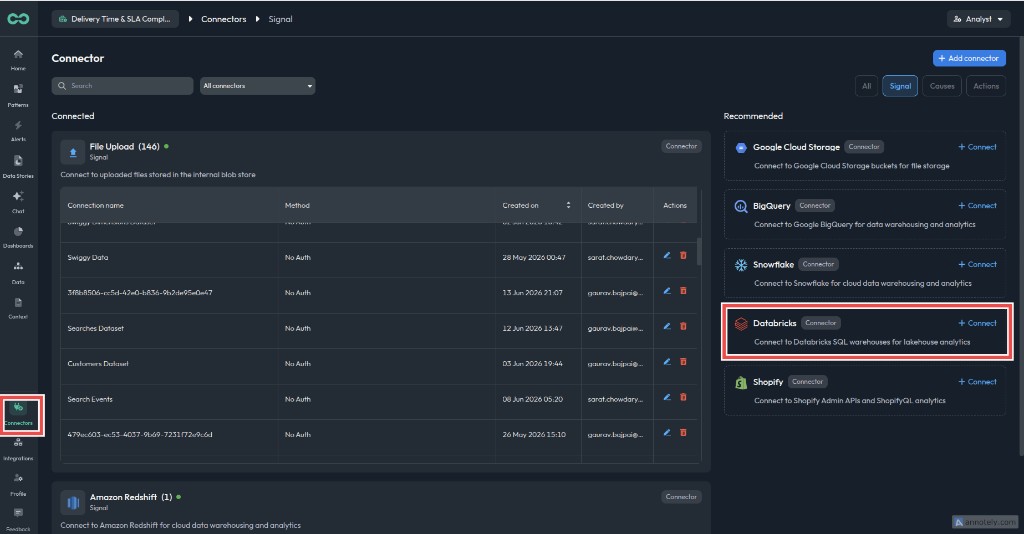
Open Connectors and select Databricks
In Bicycle, go to Connectors. Under Recommended, find Databricks and click + Connect.
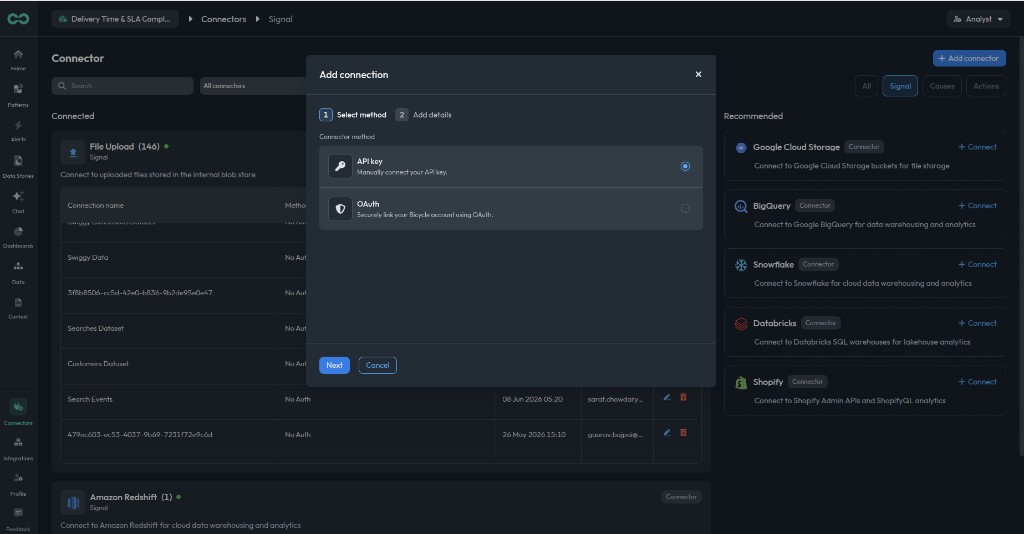
Choose API key
Enter a connection name that identifies the environment, such as Databricks Production. Select API key as the Connector method, then click Next.
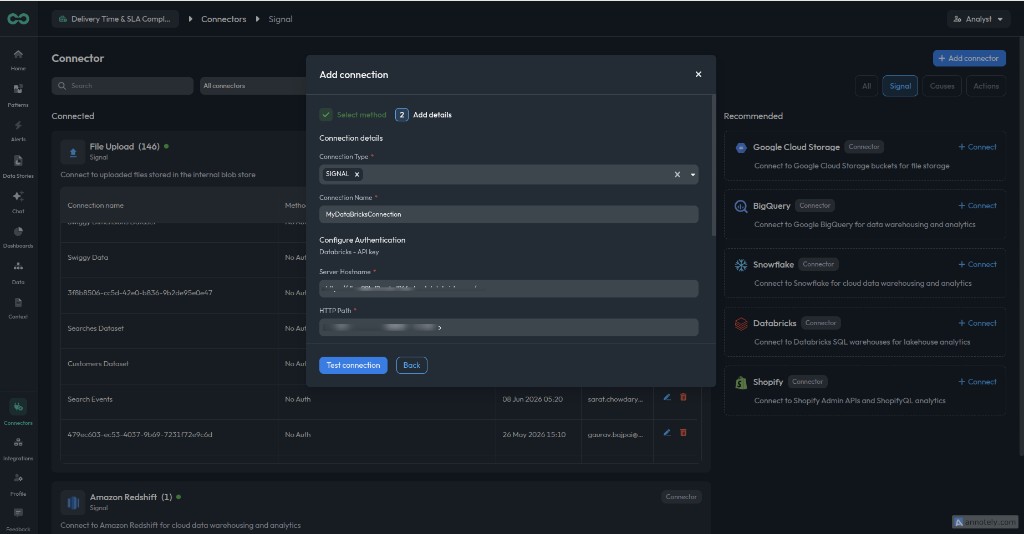
Add Databricks connection details
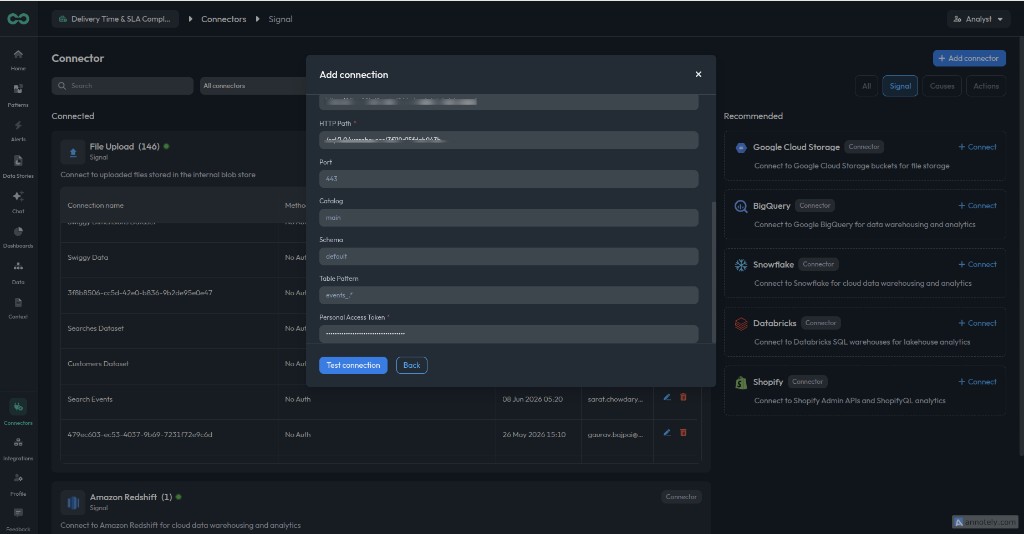
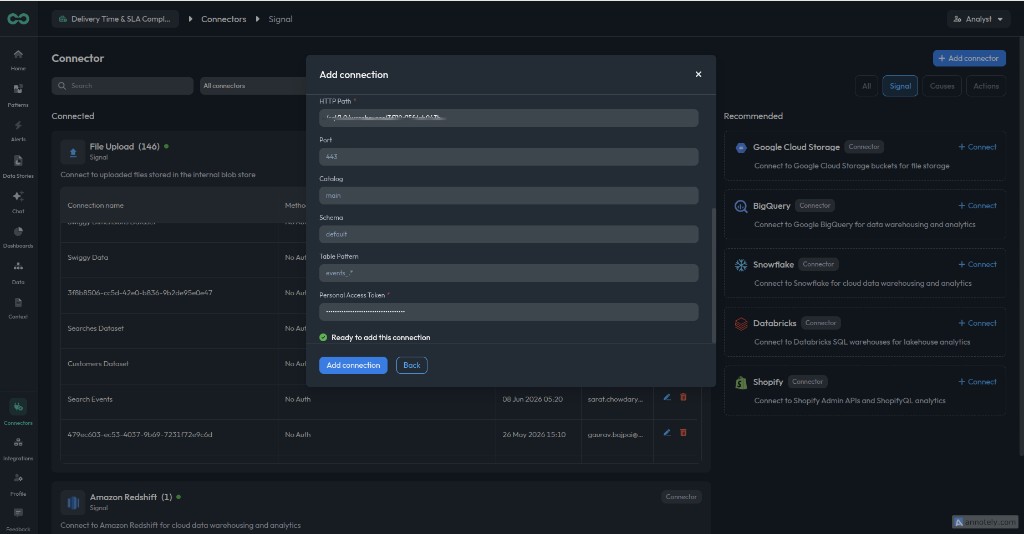
On the Add details step, fill in the Databricks connection fields and paste the personal access token.
Server hostnameRequiredWorkspace hostname from the SQL warehouse connection details.
HTTP pathRequiredSQL warehouse HTTP path, for example /sql/1.0/warehouses/<id>.
PortDefault: 443Connection port. Defaults to 443 if omitted.
CatalogUnity Catalog to scope discovery. If omitted, Bicycle discovers all catalogs the identity can access.
SchemaSchema to scope discovery. If omitted, Bicycle discovers all accessible schemas.
Table PatternRegex used to filter discovered table names, for example events_.*.
Personal Access TokenRequiredDatabricks personal access token.
Setting Catalog is recommended when you know which catalog Bicycle should read. Leaving it blank scans all accessible catalogs and can be slower on large metastores.
Example values:
- Server hostname:
dbc-a1b2c3d4-e5f6.cloud.databricks.com - HTTP path:
/sql/1.0/warehouses/abc123def456 - Catalog:
main - Schema:
analytics - Table Pattern:
orders_.*
Test the connection
Click Test connection. Bicycle validates the credentials and confirms it can connect to the configured SQL warehouse. When the test succeeds, you will see Ready to add this connection.
Add the connection
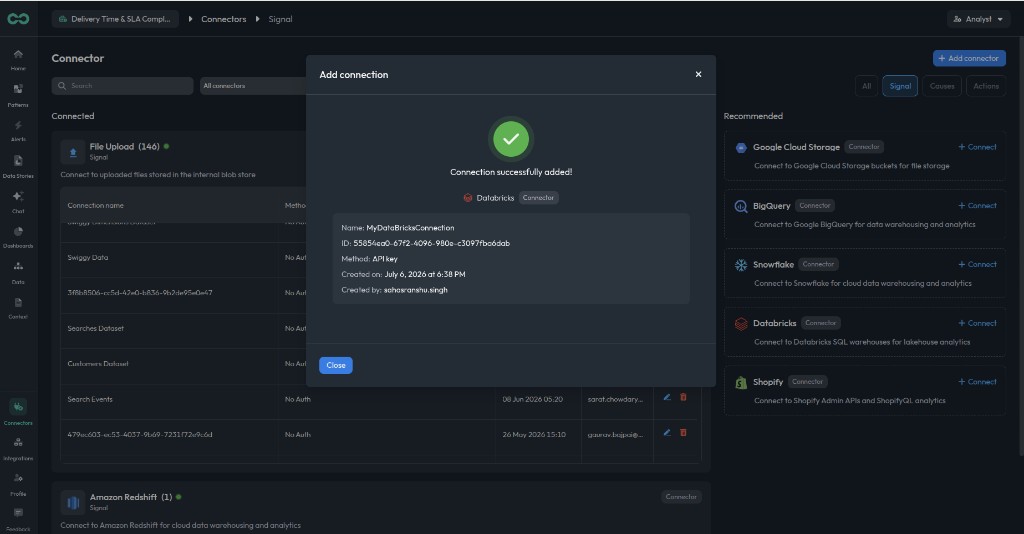
Click Add connection. When the connection is created successfully, you will see a confirmation with the connection name, ID, and method (API key). Click Close to return to the Connectors page.
Connect with OAuth (M2M)
Use OAuth machine-to-machine credentials for a non-personal service principal. This is the recommended path for production connections.
Bicycle uses OAuth M2M (client ID and client secret). This is not an interactive browser login. The Databricks JDBC driver fetches and refreshes the access token automatically.
In Databricks
- In the Databricks account console, go to User management > Service principals and create a service principal (or use an existing one).
- For that service principal, create an OAuth secret. Copy the Client ID (Application ID) and Client Secret.
- Assign the service principal to the workspace.
- Grant it CAN USE on the SQL warehouse.
- Apply the Unity Catalog grants above, using the Client ID as
<principal>.
Follow the Databricks guide to authenticate as a service principal with OAuth M2M.
Store the client secret in your organization's secrets manager and rotate it according to your security policy.
In Bicycle
Open Connectors and select Databricks
In Bicycle, go to Connectors. Under Recommended, find Databricks and click + Connect.
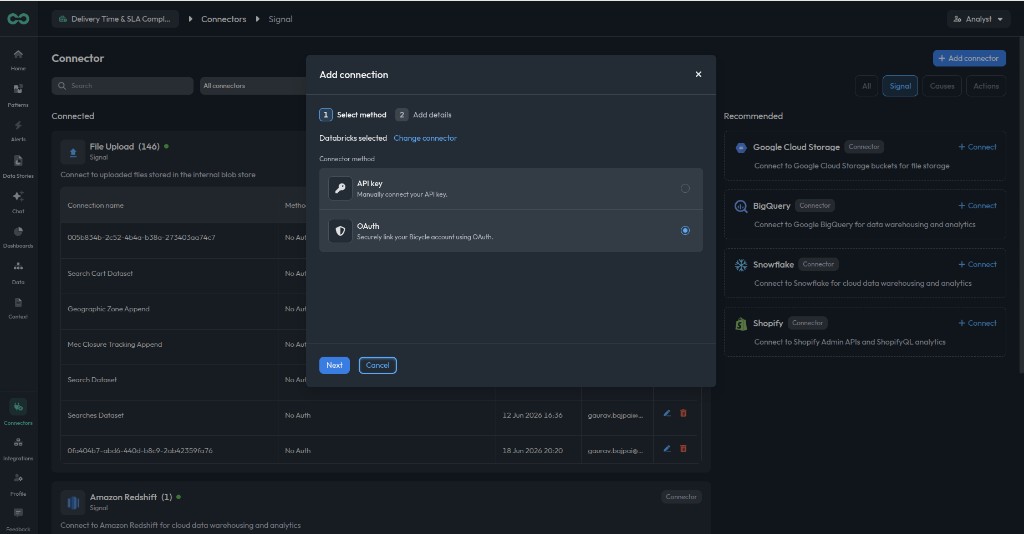
Choose OAuth (M2M)
Enter a connection name that identifies the environment, such as Databricks Production. Select OAuth (M2M) as the Connector method, then click Next.
Add Databricks connection details
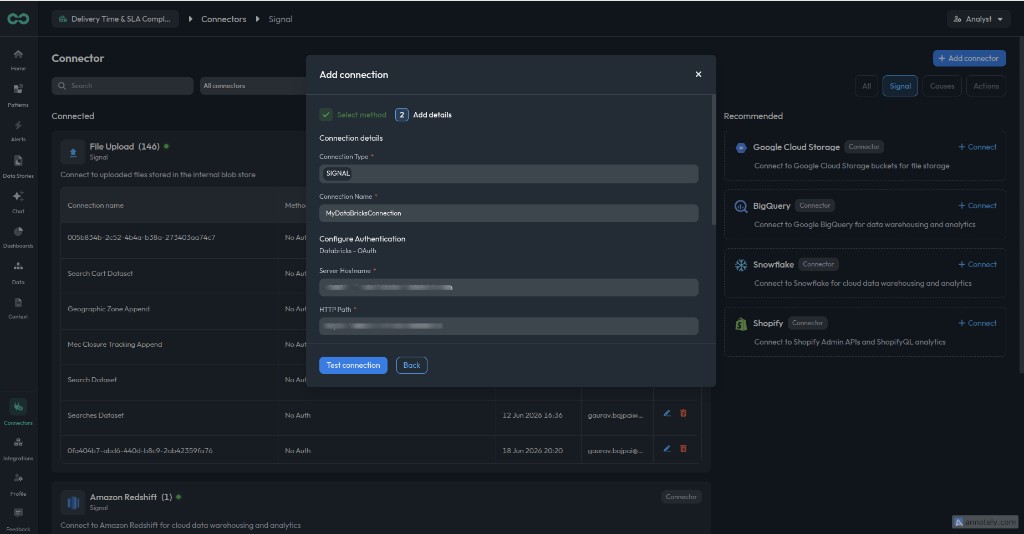
On the Add details step, fill in the Databricks connection fields and OAuth credentials.
Server hostnameRequiredWorkspace hostname from the SQL warehouse connection details.
HTTP pathRequiredSQL warehouse HTTP path, for example /sql/1.0/warehouses/<id>.
PortDefault: 443Connection port. Defaults to 443 if omitted.
CatalogUnity Catalog to scope discovery. If omitted, Bicycle discovers all catalogs the service principal can access.
SchemaSchema to scope discovery. If omitted, Bicycle discovers all accessible schemas.
Table PatternRegex used to filter discovered table names, for example events_.*.
Client IDRequiredService principal Application ID from Databricks.
Client SecretRequiredOAuth secret generated for the service principal.
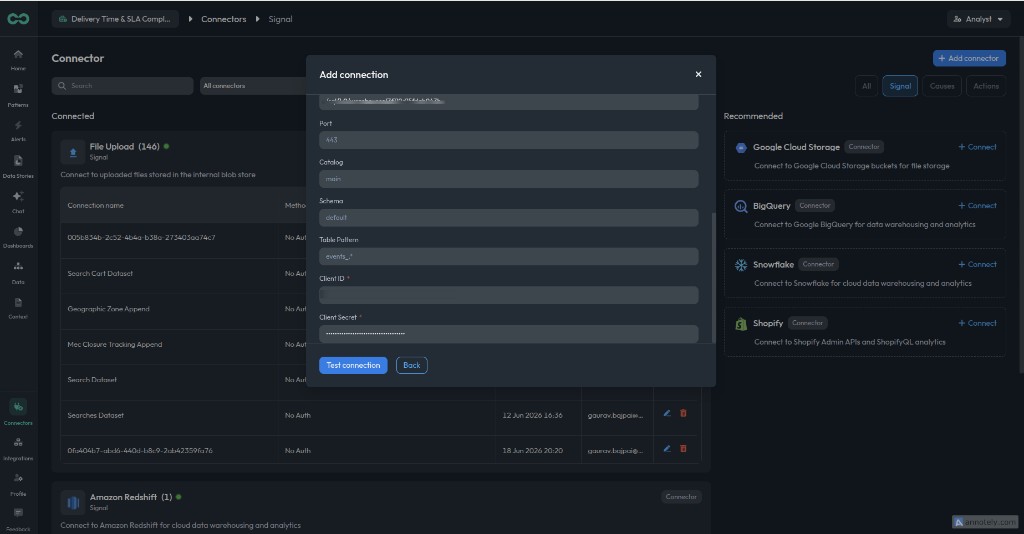
Test the connection
Click Test connection. Bicycle validates the OAuth credentials and confirms it can connect to the configured SQL warehouse. When the test succeeds, you will see Ready to add this connection.
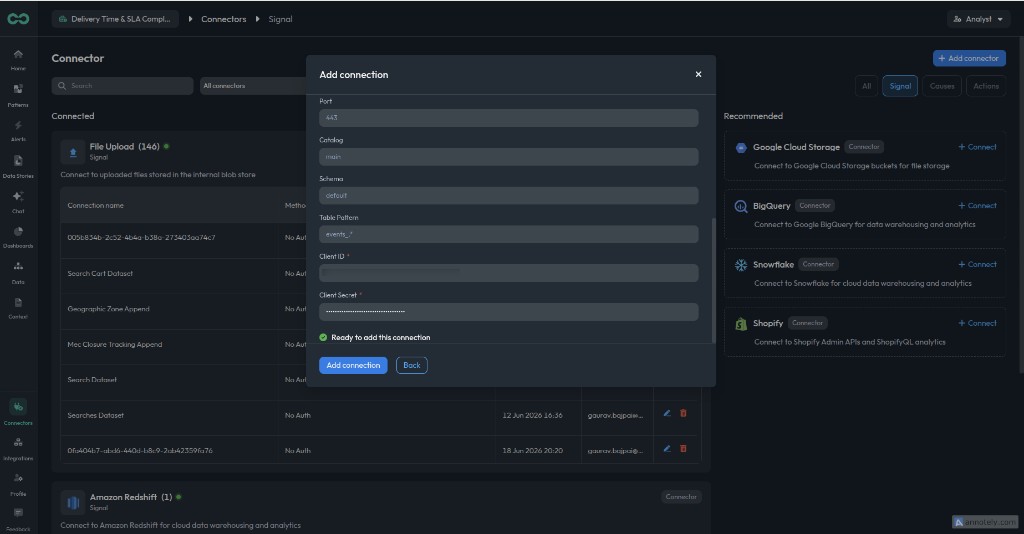
Add the connection
Click Add connection. When the connection is created successfully, you will see a confirmation with the connection name, ID, and method (OAuth (M2M)). Click Close to return to the Connectors page.
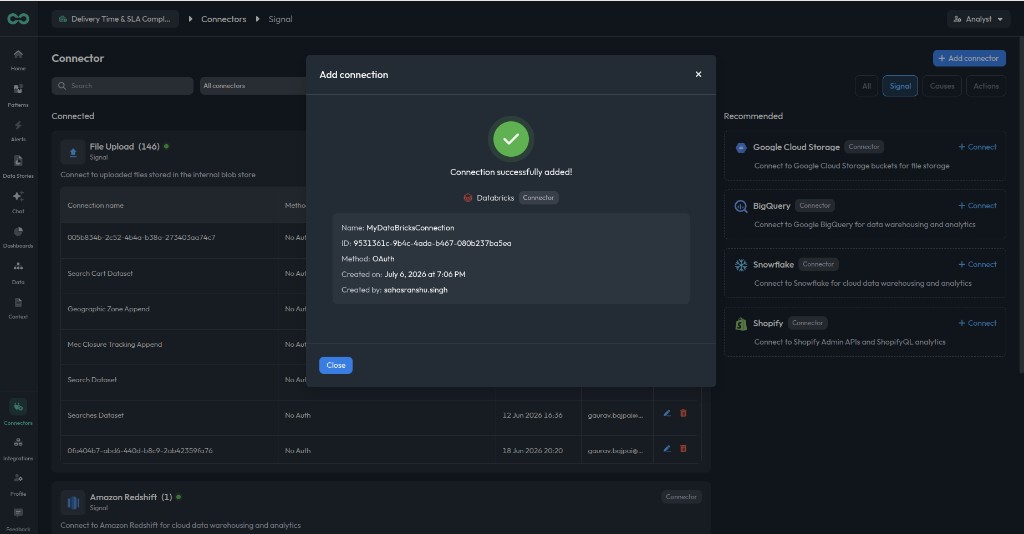
If Test connection fails or no tables appear after connecting, check the following.
| Error or symptom | Likely cause | Fix |
|---|---|---|
Server hostname is required or HTTP path is required | A required connection field is empty | Enter the Server hostname and HTTP path from the SQL warehouse connection details |
Invalid server hostname format... | The hostname contains unsupported characters | Use the hostname from Databricks connection details (alphanumeric labels separated by dots or hyphens) |
Invalid HTTP path format... | The HTTP path is malformed | Use the path from connection details, for example /sql/1.0/warehouses/<id> |
API token (personal access token) is required | Personal Access Token is empty when using API key auth | Paste the full personal access token |
OAuth M2M requires both clientId and clientSecret | One or both OAuth fields are empty | Enter both the Client ID and Client Secret from the service principal |
Failed to connect to Databricks: ... | Invalid credentials, wrong hostname or HTTP path, warehouse stopped, missing CAN USE on the warehouse, or blocked network access | Confirm connection details, verify the warehouse is running, check warehouse permissions, validate credentials, and update IP access or allowlist rules if your workspace restricts inbound traffic |
Invalid table pattern: ... | Table Pattern is not valid regex | Fix the regex syntax or clear the field to discover all tables |
| Connection succeeds but no tables are discovered | Missing Unity Catalog grants, wrong catalog or schema name, or Table Pattern filters out all tables | Verify USE CATALOG, USE SCHEMA, and SELECT ON SCHEMA grants; confirm catalog and schema names; test the table pattern |
| Some catalogs or schemas are missing | The connecting identity cannot access those namespaces | Grant Unity Catalog privileges on each catalog and schema Bicycle should discover |
To verify access outside Bicycle, ask your Databricks administrator to connect as the same identity and query system.information_schema.tables in the configured catalog and schema.