Connecting Google Cloud Storage to Bicycle
Connect to Google Cloud Storage buckets for file storage.
Requirements
Before you configure the connector in Bicycle, prepare the following in Google Cloud:
- A Google Cloud project with access to the target GCS bucket
- A GCS bucket containing the files you want to read
- Bucket Name, Path, and File Pattern for the files you want to read
If you connect using the Private toggle (default), you also need:
- A service account with access to the target bucket
- A downloaded service account JSON key
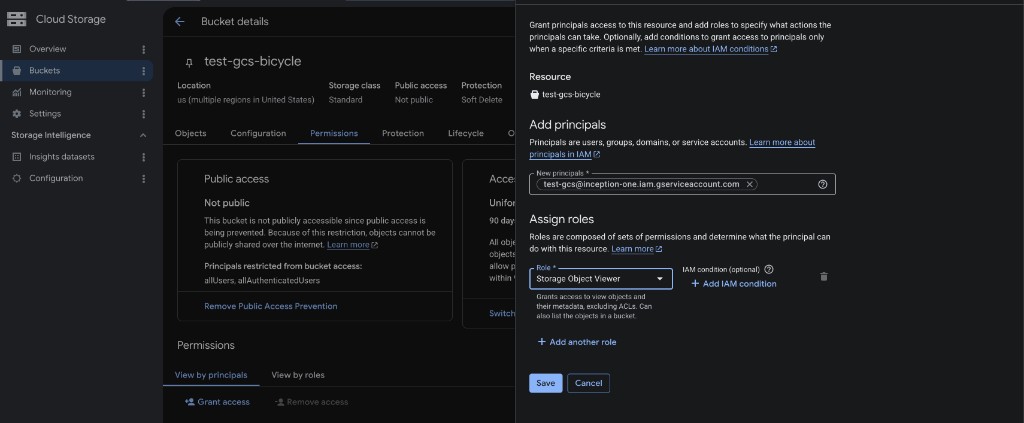
Grant the service account at least Storage Object Viewer (roles/storage.objectViewer) on the target bucket for read access. If you also need write access, grant Storage Object Creator (roles/storage.objectCreator).
Prepare a service account in Google Cloud (Private mode)
Complete these steps only if you plan to use Private mode and paste a service account JSON key in Bicycle.
Prepare a service account
- Go to the Google Cloud Console.
- Navigate to IAM & Admin > Service Accounts.
- Create a new service account, or select an existing one.
Grant bucket access
Open the target bucket, go to the Permissions tab, and grant the service account Storage Object Viewer on the bucket. Add Storage Object Creator only if Bicycle needs write access.
Create a JSON key
- Open the service account.
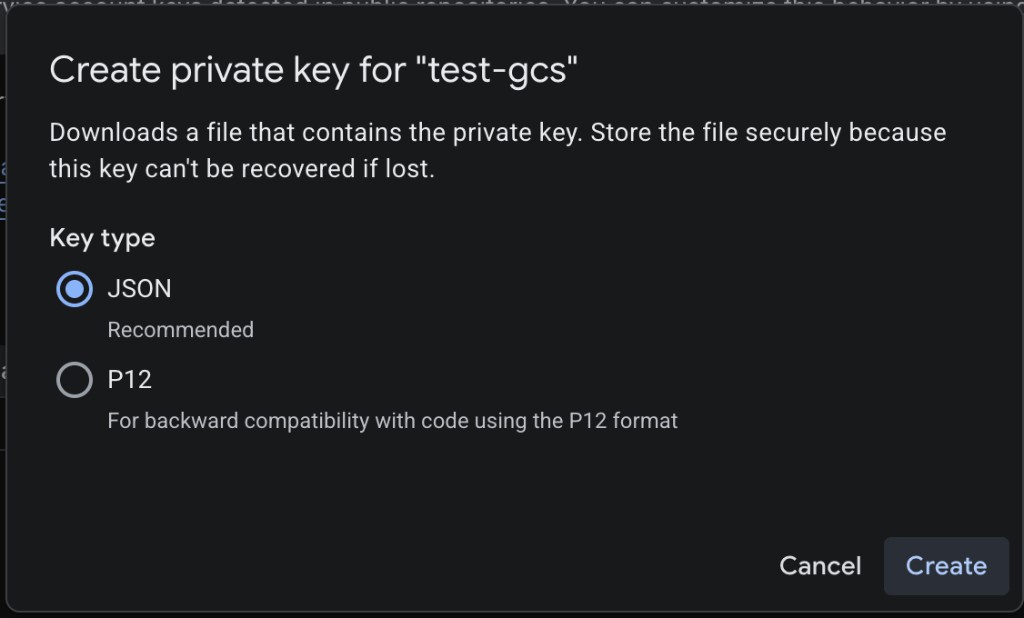
- Go to Keys > Add Key > Create new key.
- Select JSON, then click Create.
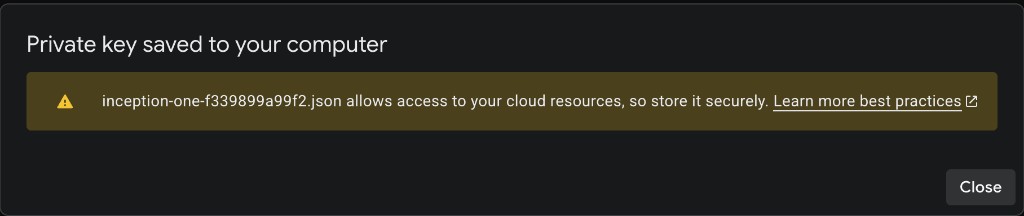
- Download the JSON key file and keep it secure.
Setup in Bicycle
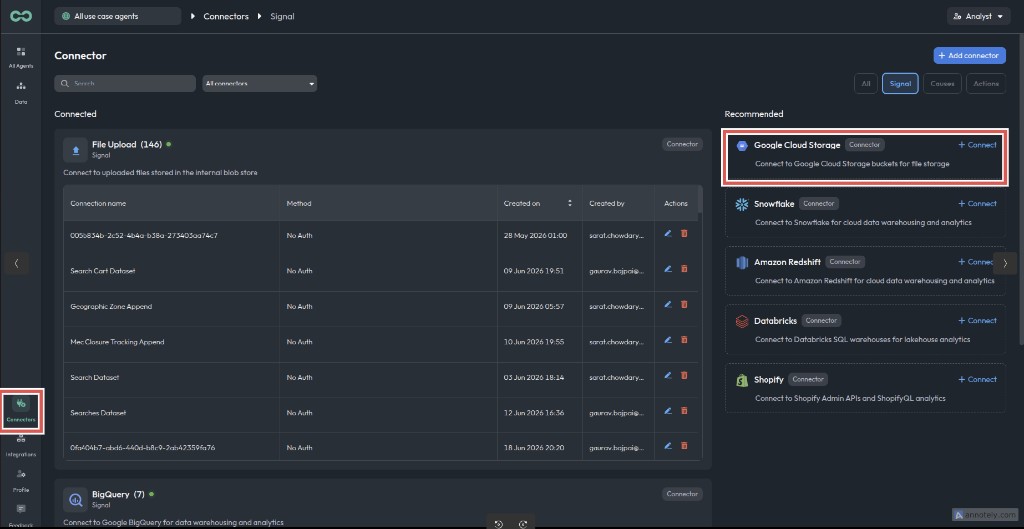
Open Connectors and select Google Cloud Storage
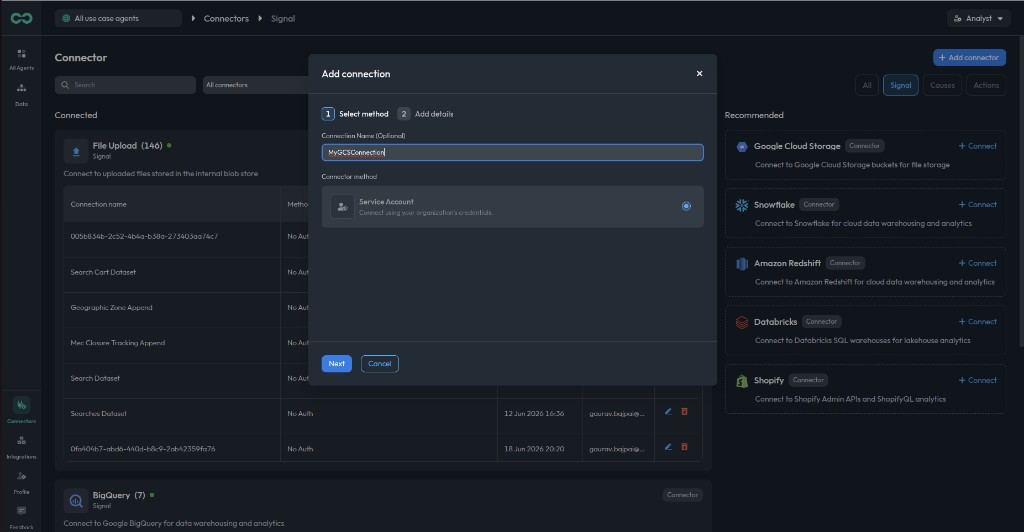
In the sidebar, go to Connectors. Under Recommended, find Google Cloud Storage and click + Connect.
Choose Service Account
Enter a connection name (for example, MyGCSConnection), select Service Account as the connector method, then click Next.
Add GCS connection details
On the Add details step, use the Private toggle to choose how Bicycle authenticates to GCS.
Private vs non-private
| Setting | Service Account JSON | When to use |
|---|---|---|
| Private (on, default) | Required | Connect to a private bucket using an explicit service account JSON key |
| Non-private (off) | Hidden — not required | Connect using the environment's default Google Cloud credentials (for example, workload identity or application default credentials) |
When Private is off, Bicycle does not send a service account JSON key. The connector service uses default Google Cloud credentials available in the runtime environment to access the bucket.
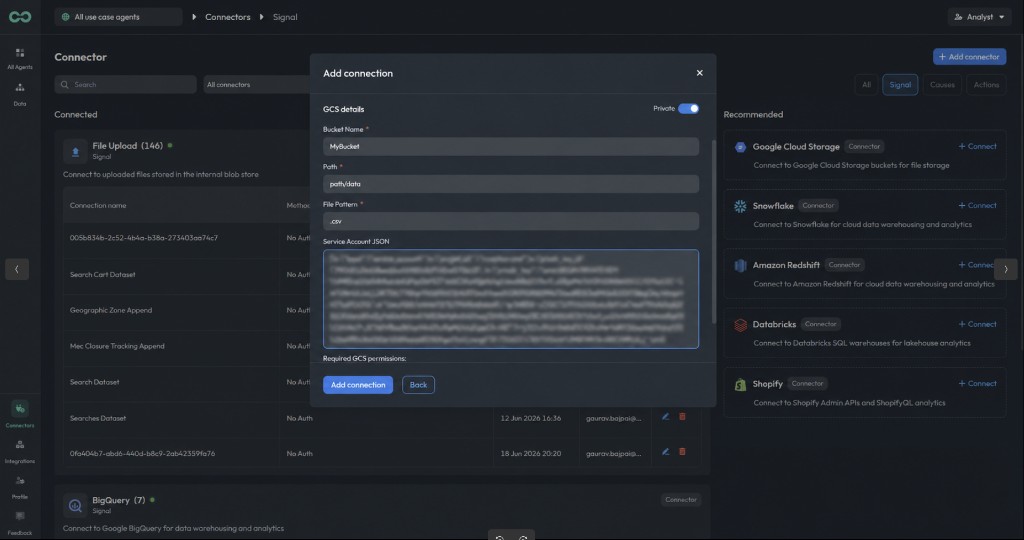
Bucket NameRequiredName of the GCS bucket
PathRequiredFolder or prefix within the bucket to read from
File PatternRequiredPattern used to match files (for example, .*\.csv$)
Service Account JSONPaste the full contents of the downloaded service account JSON key
Private mode (default) — the Service Account JSON field is shown:
Non-private mode — turn Private off. Only bucket, path, and file pattern are required:
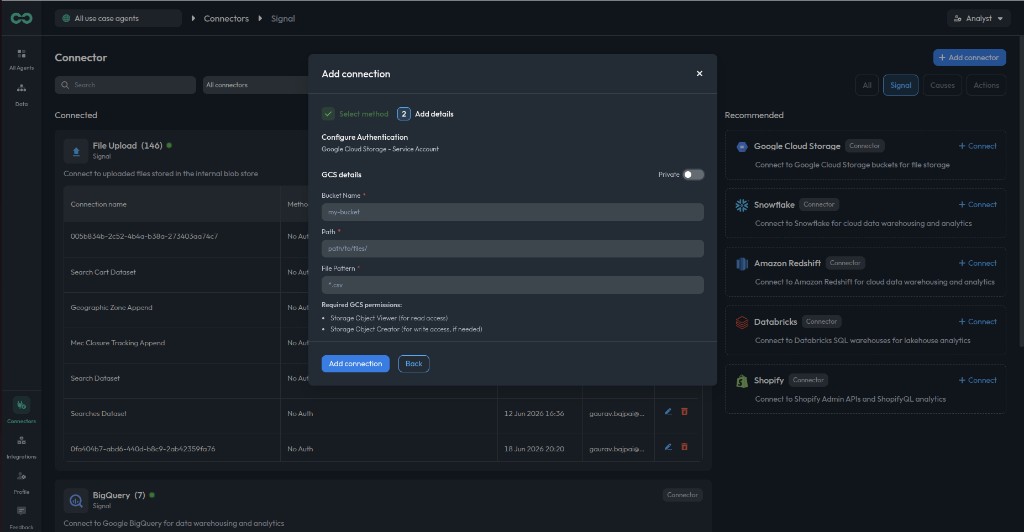
The form also shows the required GCS permissions when using a service account:
- Storage Object Viewer — read access
- Storage Object Creator — write access, if needed
Example values:
- Bucket Name:
Mybucket1 - Path:
path/data - File Pattern:
.*\.csv$ - Service Account JSON (Private mode): paste the full JSON key contents
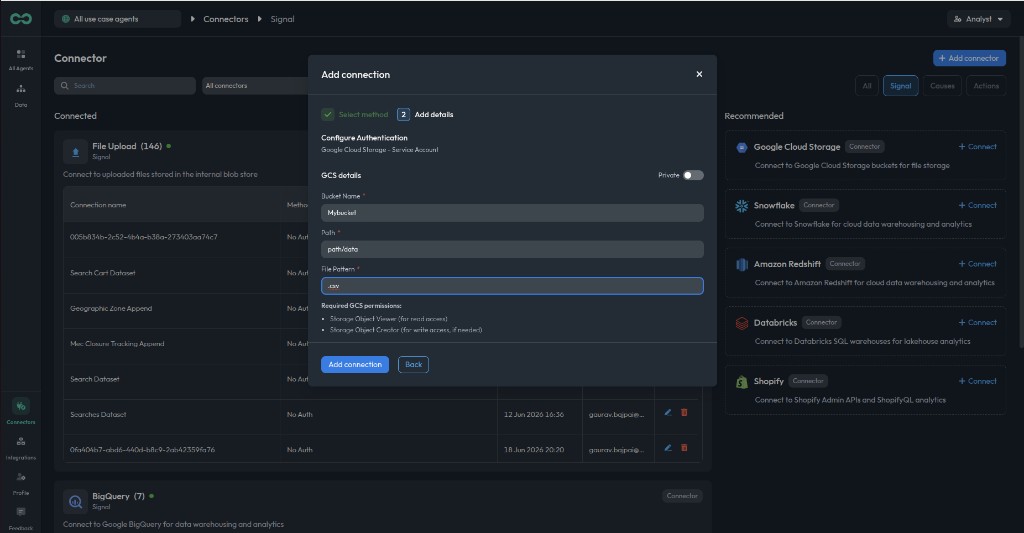
Click Add connection when finished.
Confirm the connection
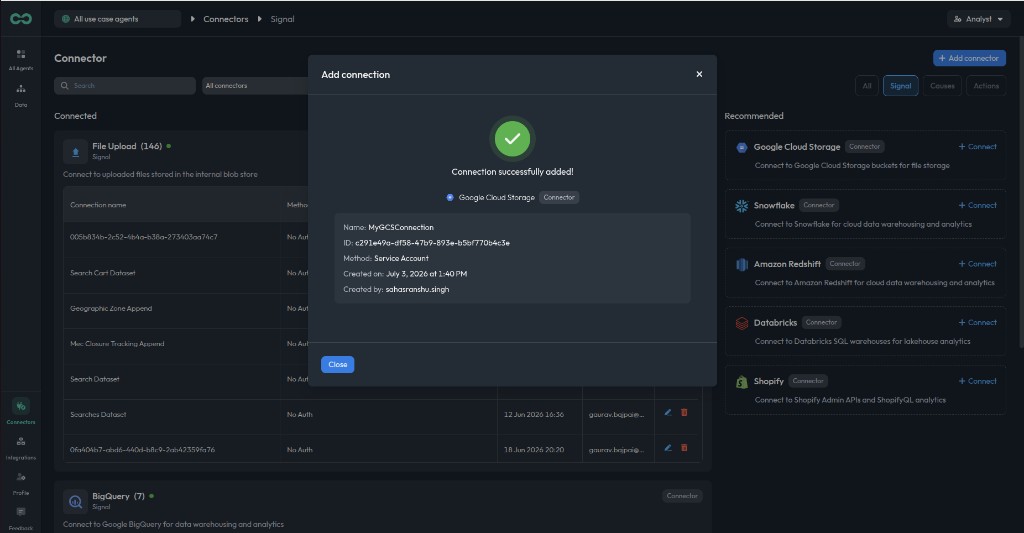
When the connection is created successfully, you will see a confirmation with the connection name, ID, and method (Service Account). Click Close to return to the Connectors page.
Supported file types
CSV, JSON, Parquet, and other delimited formats.