Connecting Amazon Redshift to Bicycle
Connect to Amazon Redshift for cloud data warehousing and analytics. Bicycle queries Redshift tables using pushdown so analytics run against your warehouse.
Requirements
To follow the steps in this guide, you'll need:
- Permission to create connectors in Bicycle
- Access to an Amazon Redshift cluster or serverless workgroup
- Redshift permissions that allow you to create database users and grant schema and table access
- If your cluster or workgroup restricts access by IP or VPC, allow Bicycle network access before connecting
Work with your AWS or database administrator to provision access. In most organizations, a platform or security team runs the SQL in the sections below; an analyst or engineer then completes the connection in Bicycle.
| Item | Description |
|---|---|
| Host | Redshift endpoint hostname (not an IP address) for the cluster or serverless workgroup |
| Port (optional) | Redshift port; defaults to 5439 if omitted |
| Database | Database Bicycle should connect to |
| Schema (optional) | Limit discovery to one schema; omit to discover all accessible schemas |
| Table Pattern (optional) | Regex used to filter table names during discovery |
| Use TLS (optional) | Encrypts the JDBC connection; enabled by default |
| Authentication | Username and password only |
Prepare Redshift access
Create a dedicated database user for Bicycle. Do not use personal Redshift credentials for production connections.
Create a database user
In your Redshift database, run the following SQL. Replace placeholders with values from your environment.
In the Amazon Redshift console, open your cluster or serverless workgroup and copy the Endpoint hostname (the part before :5439/<database>) and the Database name you will use in Bicycle.
CREATE USER bicycle PASSWORD '<secure_password>';
Use naming conventions your organization already follows for service accounts. The example user (bicycle) is a placeholder.
Grant read-only access
Grant the Bicycle user access to the database schemas and tables Bicycle should query.
Single schema (recommended for least privilege):
GRANT USAGE ON SCHEMA <schema_name> TO bicycle;
GRANT SELECT ON ALL TABLES IN SCHEMA <schema_name> TO bicycle;
ALTER DEFAULT PRIVILEGES IN SCHEMA <schema_name>
  GRANT SELECT ON TABLES TO bicycle;
Multiple schemas:
Run the same grants for each schema Bicycle should discover:
GRANT USAGE ON SCHEMA <schema_name> TO bicycle;
GRANT SELECT ON ALL TABLES IN SCHEMA <schema_name> TO bicycle;
ALTER DEFAULT PRIVILEGES IN SCHEMA <schema_name>
  GRANT SELECT ON TABLES TO bicycle;
If Bicycle needs to read Redshift views that depend on objects in other schemas, make sure the Bicycle user also has access to those dependent schemas and views.
Allowlist Bicycle network access
If your Redshift endpoint is only reachable from specific IP addresses or VPC rules, work with your AWS administrator to allow inbound traffic before you create the connection in Bicycle. Bicycle does not configure security groups or validate network access during connection setup — blocked network access appears as a failed Test connection.
For provisioned Redshift clusters, this usually means updating the cluster's VPC security group inbound rules. For Redshift Serverless, confirm the workgroup endpoint is reachable from Bicycle and update the associated VPC security group rules as needed.
Contact your Bicycle administrator for the IP addresses to allowlist. Bicycle does not display these addresses in the Connectors UI.
Setup in Bicycle
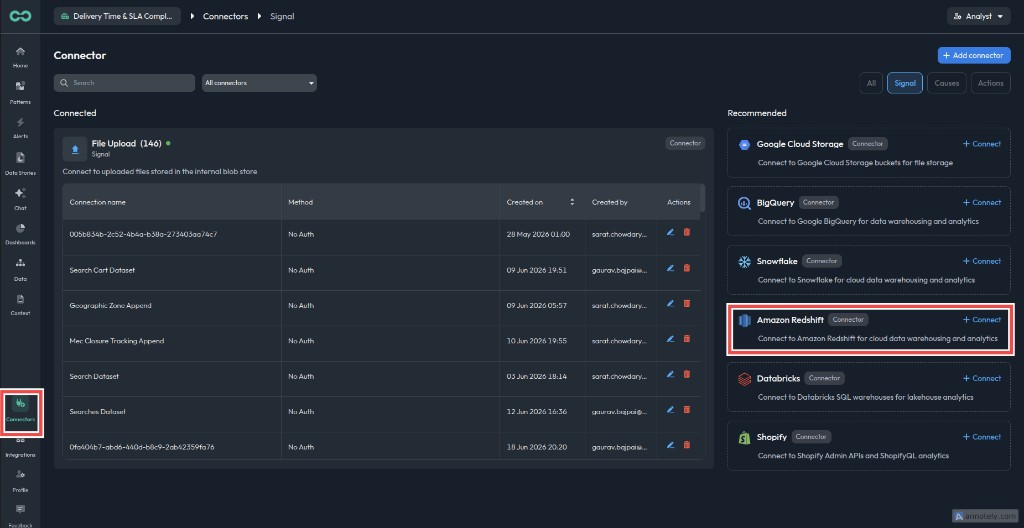
Open Connectors and select Amazon Redshift
In Bicycle, go to Connectors. Under Recommended, find Amazon Redshift and click + Connect.
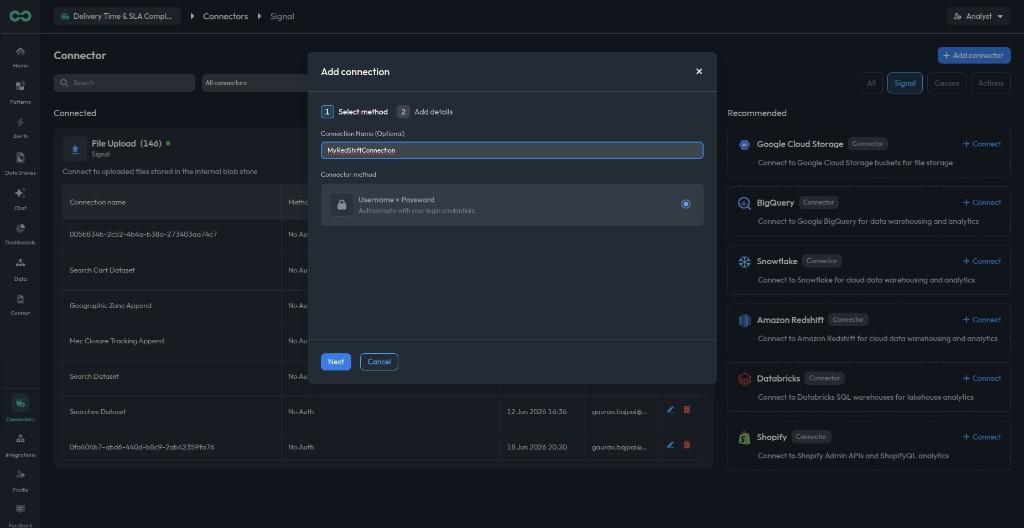
Choose Username + Password
Enter a connection name that identifies the environment, such as Redshift Production. Select Username + Password as the Connector method, then click Next.
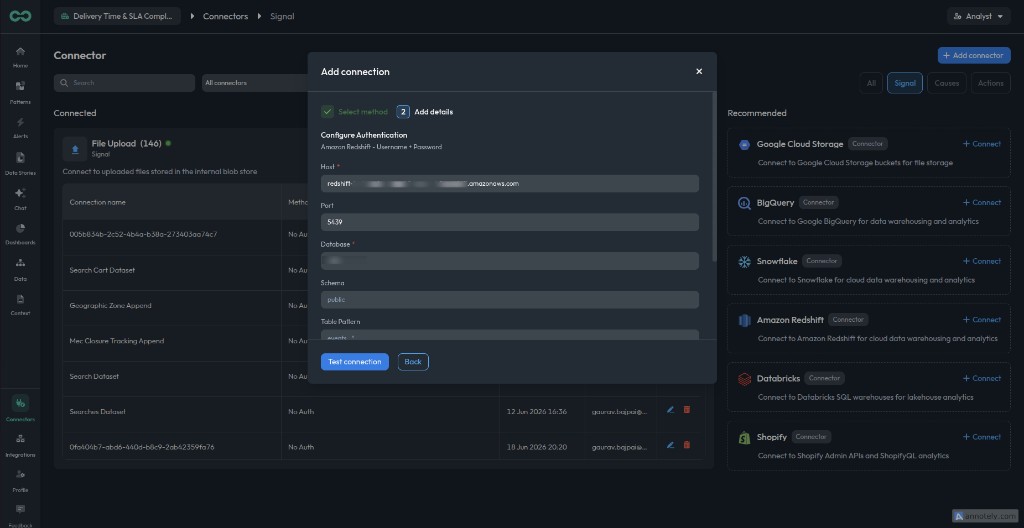
Add Redshift connection details
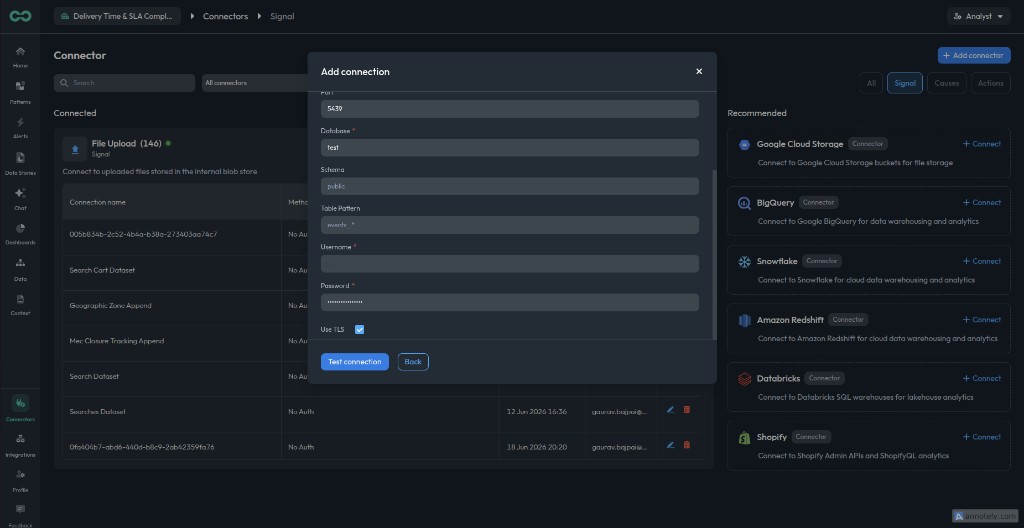
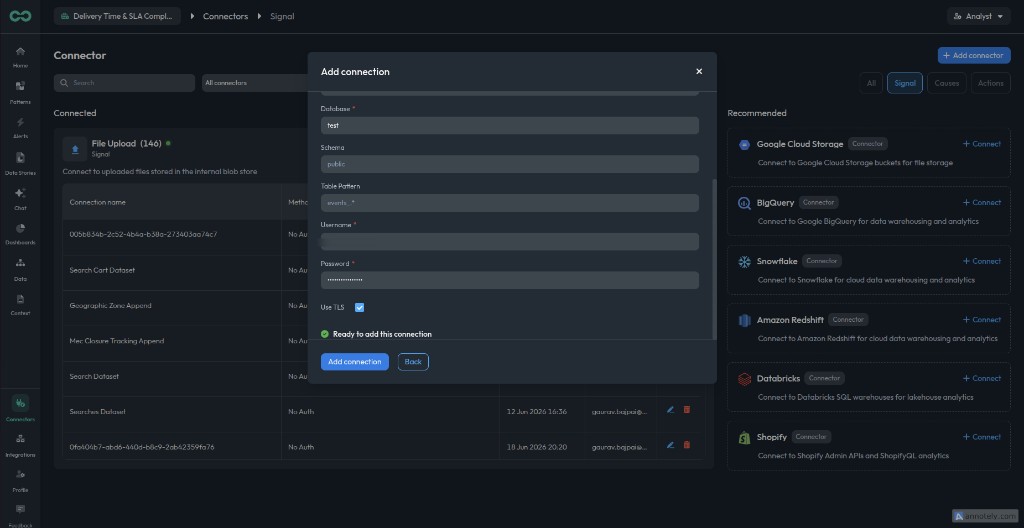
On the Add details step, fill in the Redshift connection fields.
HostRequiredRedshift endpoint hostname, not an IP address. Works for provisioned clusters and serverless workgroups
PortDefault: 5439Redshift port. Defaults to 5439 if omitted
DatabaseRequiredDatabase Bicycle should connect to
SchemaSchema to discover. If omitted, Bicycle discovers all schemas the user can access in the database
Table PatternRegex used to filter discovered table names, for example orders_.*
UsernameRequiredDedicated Redshift database user, such as bicycle
PasswordRequiredPassword for the Redshift database user
Use TLSEncrypts the JDBC connection to Redshift. Checked by default; leave enabled for production endpoints
Example values:
- Host:
example-cluster.abc123.us-east-1.redshift.amazonaws.com(provisioned) ordefault.123456789012.us-east-2.redshift-serverless.amazonaws.com(serverless) - Port:
5439 - Database:
analytics - Schema:
public - Table Pattern:
orders_.* - Username:
bicycle - Use TLS: enabled (default)
Use TLS is enabled by default. Bicycle connects to Redshift over an encrypted JDBC connection unless you explicitly turn this off. Only disable it if your Redshift endpoint does not support TLS.
Test the connection
Click Test connection. Bicycle validates the credentials and confirms it can connect to the configured Redshift database. When the test succeeds, you will see Ready to add this connection.
Add the connection
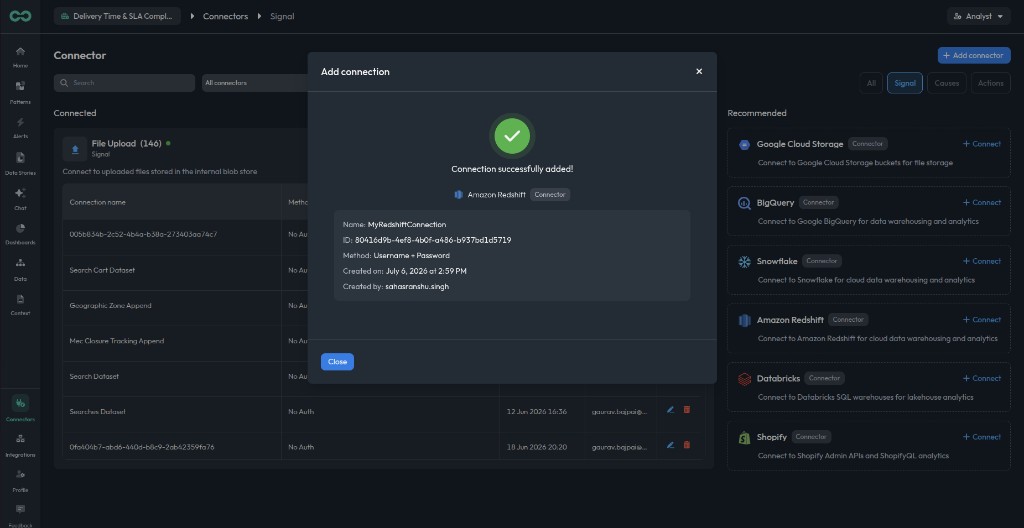
Click Add connection. When the connection is created successfully, you will see a confirmation with the connection name, ID, and method (Username + Password). Click Close to return to the Connectors page.
If Test connection fails or no tables appear after connecting, check the following.
| Error or symptom | Likely cause | Fix |
|---|---|---|
Host (endpoint) is required or Database is required | A required connection field is empty | Enter the Redshift endpoint hostname, database, username, and password |
Invalid host format... | The host contains unsupported characters or is an IP address | Use the endpoint hostname from the Redshift console, not an IP address |
Username/password authentication is required | Username or password is missing | Enter both the Redshift username and password |
Failed to connect to Redshift: ... | Network access is blocked, the endpoint is wrong, TLS is misconfigured, or credentials are invalid | Confirm the endpoint and port, keep Use TLS enabled unless your endpoint requires otherwise, update security group or allowlist rules, and verify the username and password |
Invalid table pattern: ... | Table Pattern is not valid regex | Fix the regex syntax or clear the field to discover all tables |
| Connection succeeds but no tables are discovered | Missing schema USAGE, missing table SELECT, wrong schema name, or Table Pattern filters out all tables | Verify the Redshift grants, confirm the schema name, and test the table pattern |
| Some schemas are missing when Schema is empty | The Redshift user cannot access those schemas | Grant USAGE and SELECT access on each schema Bicycle should discover |
| New tables do not appear | Default privileges were not granted for future tables | Run ALTER DEFAULT PRIVILEGES for the schema owner that creates new tables |
To verify access outside Bicycle, ask your Redshift administrator to connect as the Bicycle user and run a simple SELECT against the target tables.