Connecting Slack to Bicycle
Connect to Slack workspaces for messaging and notifications.
Requirements
To follow the steps in this guide, you'll need:
- An active Slack workspace
- Permission to authorize apps in that workspace (administrator approval may be required)
Your Slack workspace administrator may need to approve the Bicycle app before you can authorize it.
Setup
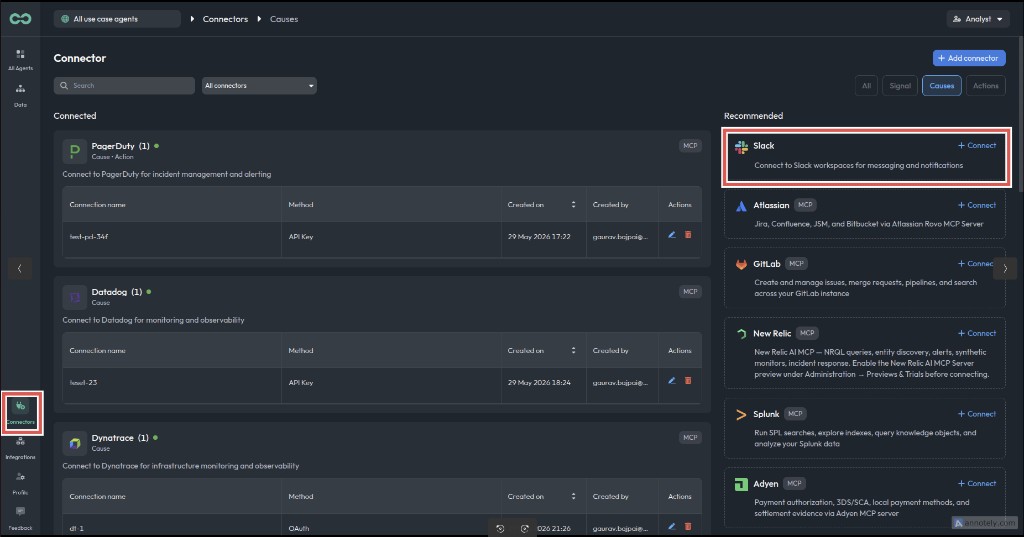
Open Connectors and select Slack
In the sidebar, go to Connectors. Under Recommended, find Slack and click + Connect.
Choose OAuth
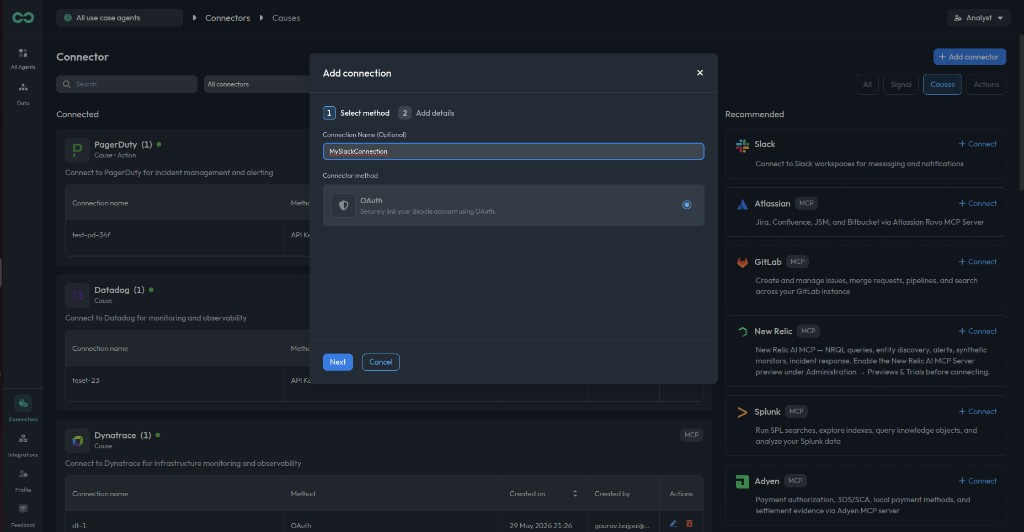
Enter a connection name (for example, MySlackConnection), select OAuth as the connector method, then click Next.
Authorize in Slack
After you click Next, Bicycle opens a popup to Slack's authorization page. The main window shows Waiting for authorization... while you complete authorization in the popup.
In the popup, select the workspace you want to connect, review the requested permissions, and click Allow.
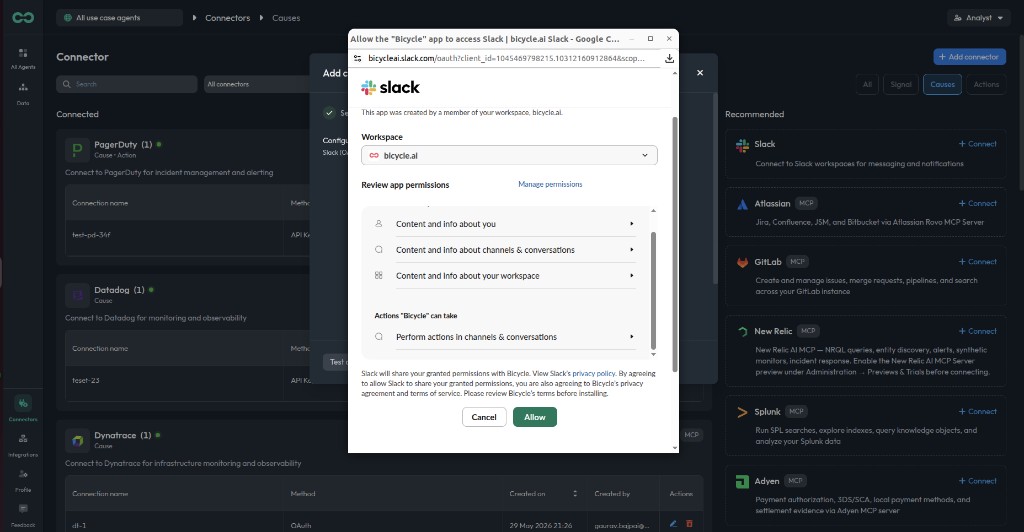
The following bot token scopes are requested automatically during OAuth:
app_mentions:read— View messages that mention the appchannels:history— View messages in public channelschannels:read— List public channelschat:write— Send messagesfiles:read— View filesfiles:write— Upload and share filesgroups:history— View messages in private channelsgroups:read— List private channelsim:history— View direct message historyim:read— View direct messagesim:write— Start direct messagesreactions:write— Add emoji reactionsusers:read— View people in the workspace
Confirm the connection
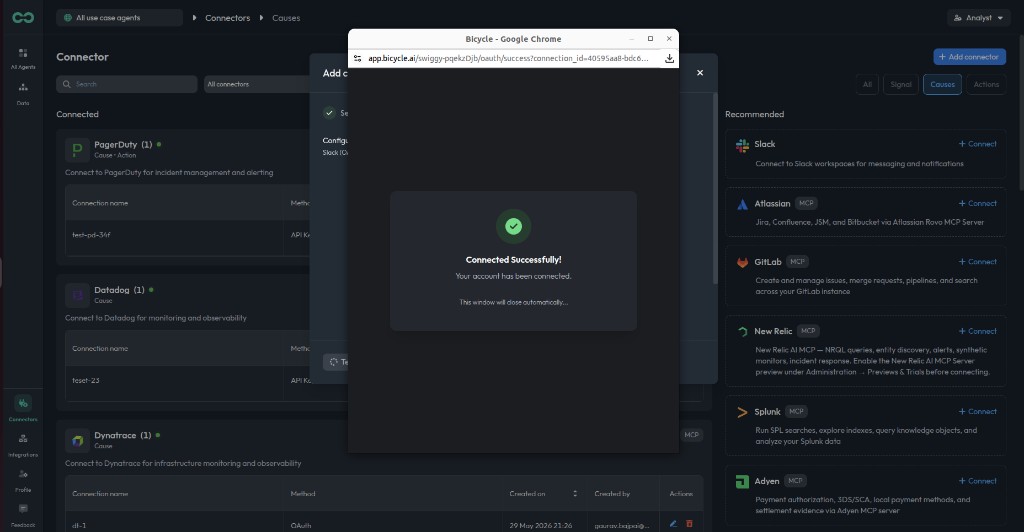
When authorization completes, the popup shows Connected Successfully! and closes automatically. Bicycle shows Connection successfully added! with the connection name, ID, and method (OAuth). Click Close to return to the Connectors page.