Alerts and subscriptions
Once a pattern is running, two tabs matter: Overview shows what it found, and Subscriptions decides who hears about it.
Overview
The Overview tab has two views.
Training overview
Per-segment charts of the KPI against its baseline, over the pattern's analysis period. This is the tab to check when tuning a pattern — it shows exactly what the detection rule is seeing.
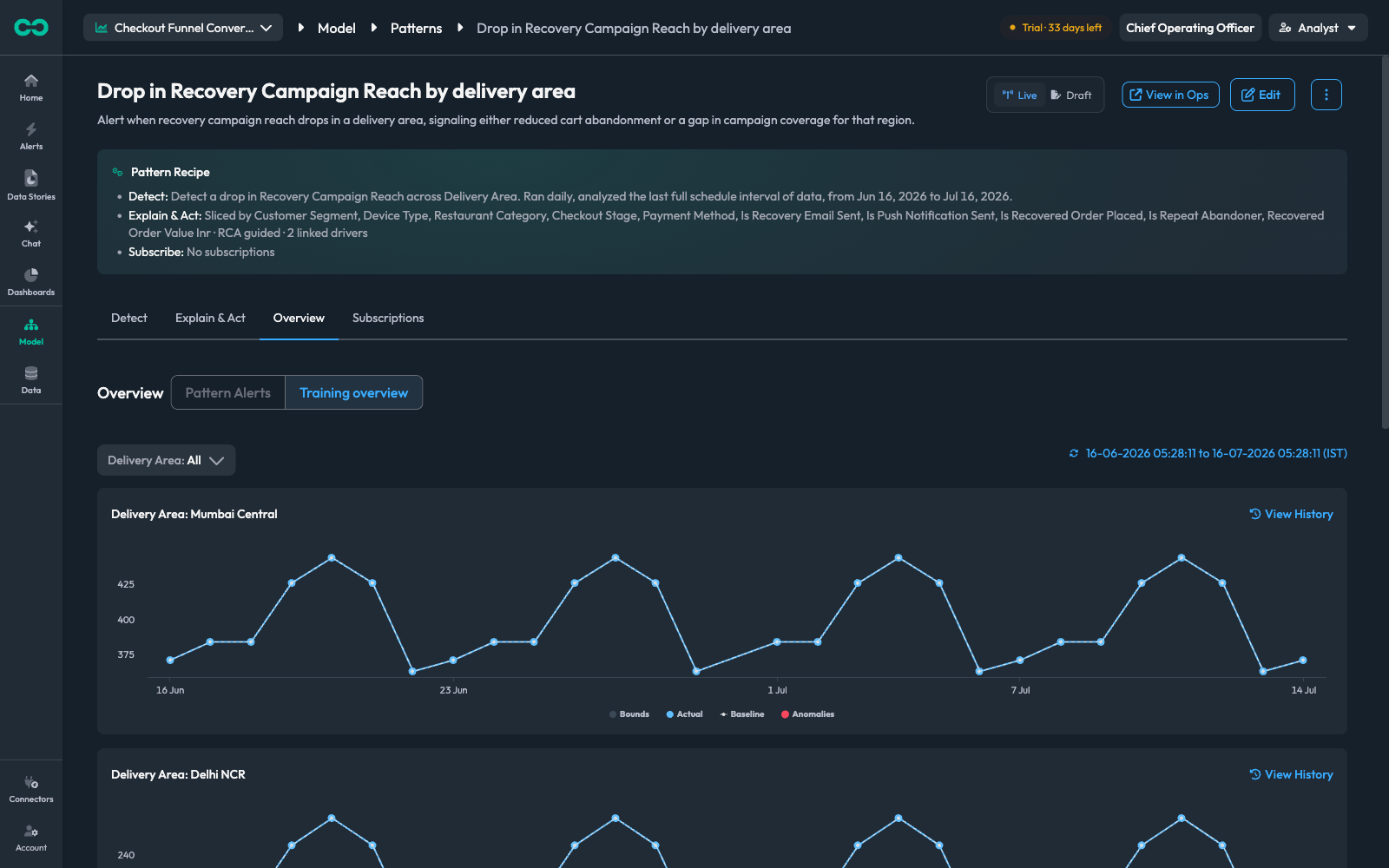
Each chart plots four series:
| Series | Meaning |
|---|---|
| Actual | The KPI's observed value |
| Baseline | The expected value from the pattern's history |
| Bounds | The band around the baseline — the tolerance before something counts as an anomaly |
| Anomalies | Points that fell outside the band in the watched direction |
Use the segment dropdown at the top left to filter to one segment, and View History on any chart to see further back.
Reading these charts is the fastest way to diagnose a misconfigured pattern:
- Anomalies everywhere — the band is too tight (raise Bound size) or the baseline has the wrong seasonality.
- No anomalies during a real incident — the band is too wide, or the Fire alert when rules are set too high.
- A regular sawtooth crossing the band — the seasonality is wrong. A KPI with a weekly rhythm needs a Weekly baseline.
Pattern alerts
The active alerts this pattern has produced, from the inbox, over a date range you pick. An empty list here on a pattern you expect to be firing usually means one of three things: the pattern is a draft (findings are withheld from the feed), the date range does not cover a run, or the Fire alert when rules are filtering everything out.
Subscriptions
A subscription routes a pattern's alerts to a destination. A pattern with no subscriptions still detects and still shows alerts in the inbox — it just does not push them anywhere.
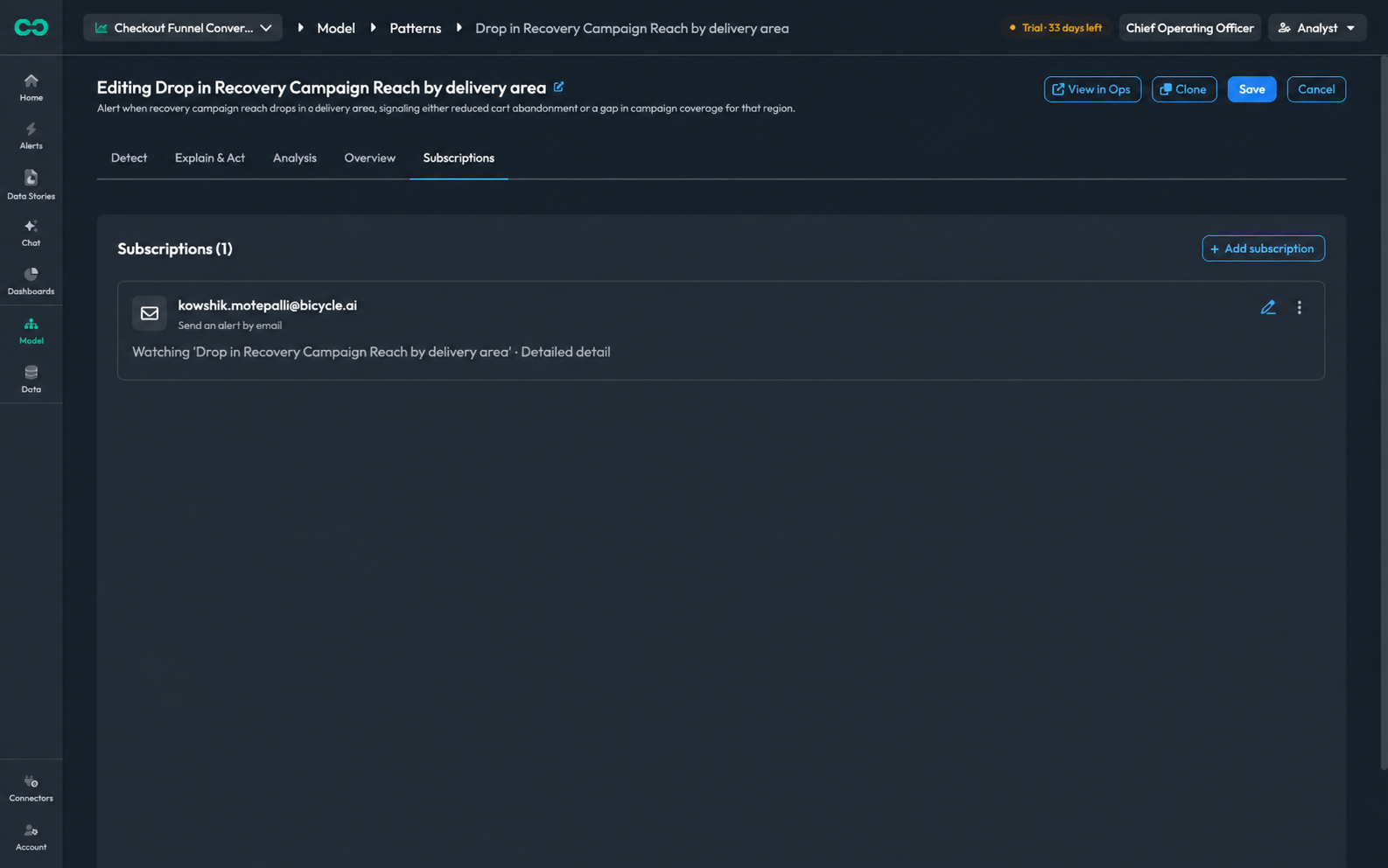
Click Add subscription to open the composer. The left side configures delivery; the right side previews the exact message that will be sent, built from this pattern's real data.
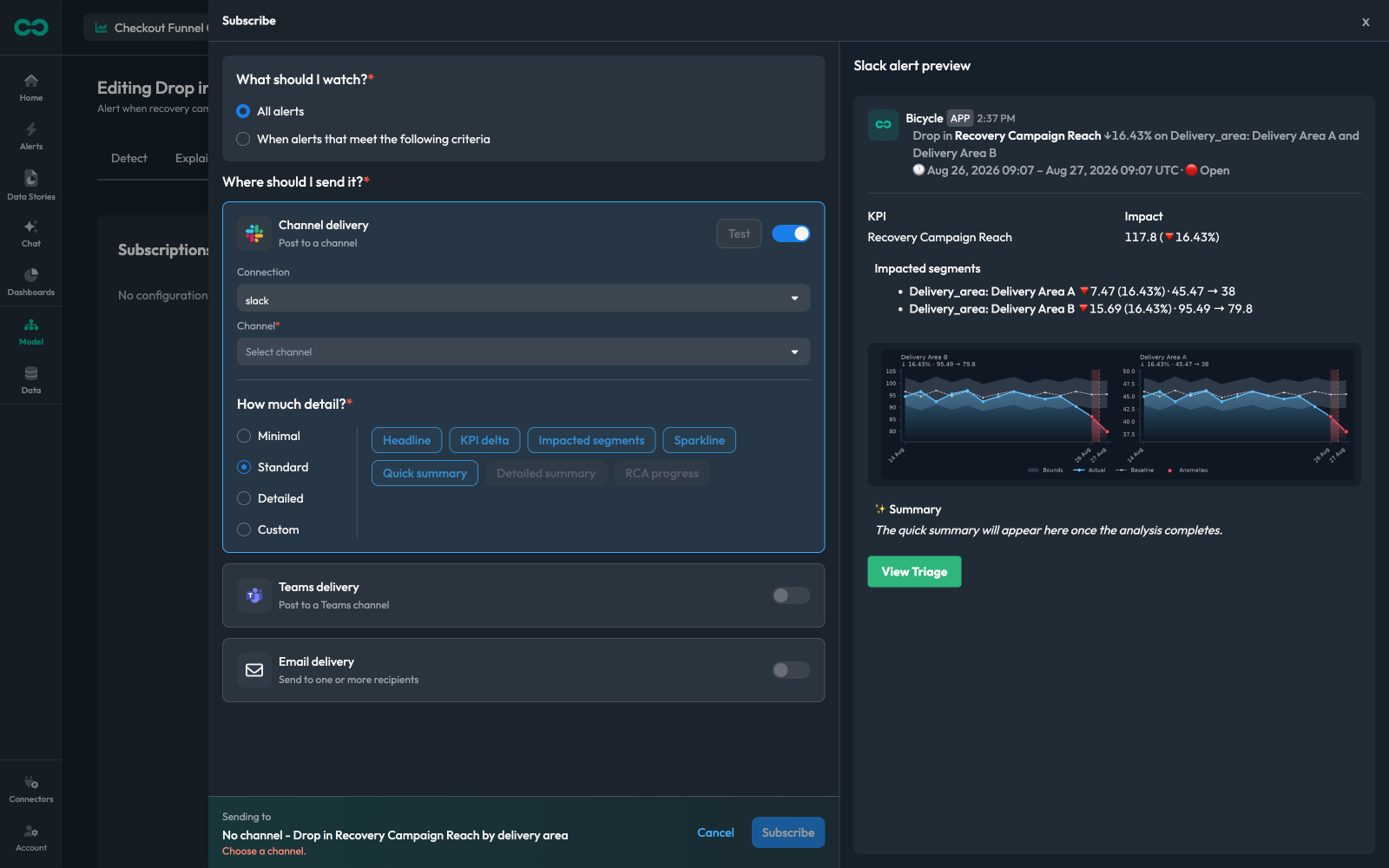
What should I watch?
All alertsDefault: selectedEvery alert this pattern produces.
When alerts meet the following criteriaOnly alerts matching conditions you specify — useful for routing severe alerts to an on-call channel while everything else goes to a team channel.
Where should I send it?
Three delivery methods, each toggled independently. One subscription can use more than one.
Channel deliveryPost to a Slack channel. Pick the Connection, then the Channel. Test sends a sample message so you can confirm the destination before saving.
Teams deliveryPost to a Microsoft Teams channel.
Email deliverySend to one or more recipients. All recipients receive the same email.
How much detail?
Four presets, plus per-block control:
| Preset | Best for |
|---|---|
| Minimal | High-volume patterns where the headline is enough. One message per incident, never updated. |
| Standard | The default — headline, KPI delta, impacted segments, sparkline, and a quick summary. On email, waits for the analysis. |
| Detailed | Adds the full analysis summary. Final result only, no in-progress updates. |
| Custom | Pick the blocks yourself. RCA progress is only available here, and only on Slack and Teams. |
The blocks are Headline, KPI delta, Impacted segments, Sparkline, Quick summary, Detailed summary, and RCA progress. Selecting a preset highlights the blocks it includes; Custom lets you toggle them individually.
KPI delta is not shown on patterns with incident grouping. An incident has no single total across its segments, so every number on its alerts is a segment's own.
The preview on the right updates as you change these, showing the real message — the KPI and its delta, the impacted segments with their before-and-after values, sparklines with the anomaly marked, the summary block, and a View Triage button linking back into Bicycle.
Subscribe stays disabled until a destination is complete. The footer tells you what is missing — "No channel — choose a channel."
Subscriptions are saved through their own API, separately from the rest of the pattern config. Adding or removing one never creates a new pattern, and never needs a Save on the edit page.
When does a subscription send?
A segment is one combination of dimension values, for example Store: NYC. Some teams call it a series. With Incident grouping on, a pattern raises one incident per problem, and the segments it touches become that incident's members (how that works). Slack and Teams keep one message per incident and update it in place. Email cannot update a sent message, so it sends a short conversation per incident instead.
One thing decides how email behaves: whether your selection includes a summary block, meaning Quick summary or Detailed summary. A summary exists only after the automated analysis, so a selection that includes one waits for the analysis and sends once. A selection without one has everything it needs at detection time, so it can report every change.
| Called below | Means |
|---|---|
| With a summary | Standard, Detailed, or Custom with Quick summary or Detailed summary ticked |
| Without a summary | Custom with neither summary block ticked: any mix of Headline, KPI delta, Impacted segments, and Sparkline |
| Minimal | The Minimal preset: headline only |
At a glance
| You picked | Slack and Teams | |
|---|---|---|
| Minimal | One message when the incident opens. Never updated. | One email when the incident opens. Nothing after it. |
| With a summary | One message when the incident opens, updated on every run, with the cause added when the analysis completes. | One email, when the analysis completes, carrying the cause. Nothing before it. Needs the pattern set to investigate Automatically. |
| Without a summary | One message when the incident opens, updated on every run. No cause. | One email each time the incident changes shape: it opened, a segment joined, a segment recovered, it resolved. All in one thread. |
To get both an email at every change and an email with the cause, add two subscriptions to the pattern, one of each. Each keeps its own conversation.
Moment by moment
Slack and Teams
| Moment | Minimal | With or without a summary |
|---|---|---|
| Incident opens | Posts the message | Posts the message |
| A run only moves the numbers | No change | Updates the numbers |
| A segment joins the incident | No change | Adds the segment, updates the count |
| A segment recovers, incident still ongoing | No change | Marks it recovered, shows how many are still live |
| Incident resolves | No change | Shows Resolved and how long it lasted |
| Automated analysis completes | No change | Adds the cause, with a summary only |
| The analysis re-runs | No change | Replaces the cause, with a summary only |
| While the analysis runs | No change | Shows the live investigation, only with RCA progress ticked |
| Messages per incident | 1 | 1, updated in place |
| Moment | Minimal | With a summary | Without a summary |
|---|---|---|---|
| Incident opens | Sends | Not yet | Sends |
| A segment joins the incident | No | Not yet | Sends |
| A segment recovers, incident still ongoing | No | Not yet | Sends |
| Incident resolves | No | Not yet | Sends |
| Automated analysis completes | No | Sends, with the cause. The only email. | No |
| The analysis re-runs | No | No | No |
| A run only moves the numbers | No | No | No |
| Emails per incident | 1 | 1 | One per change, usually 2 to 4 |
Rules that hold for every selection:
- A selection with a summary waits for the automated analysis. If the analysis fails, the email still goes out, with a note asking you to open Triage in place of a cause. With the pattern set to On demand, the analysis never runs on its own, so that email is never sent. The composer blocks the summary blocks in Custom while the pattern is On demand; Standard and Detailed stay selectable, so set the pattern to Automatically if you use them for email.
- A run that only moves the numbers never emails. An incident that continues day over day sends no new email.
- Several segments joining or recovering in the same run share one email. Two incidents on the same pattern are two conversations, and one run that moves several incidents sends one email per incident. There is no digest across incidents.
- Test sends one email marked [TEST], showing the latest moment your selection sends at. On Slack and Teams, Test replays the moments on one message a few seconds apart.
- A segment's episode is cut after one season of the pattern's baseline, one day for a daily baseline and seven for a weekly one, and continues as a new episode. The cut sends nothing. The continuation is announced like a join or a new incident, and an incident that ended only through such cuts reads Continued as a new episode rather than Resolved.
What an email contains
| Part | When it appears |
|---|---|
| Subject | Always. Direction, KPI, segments, and when the incident opened, for example Drop in Orders — Store: NYC [Jul 6, 11:00]. Stays the same for the whole conversation. |
| Opening line | When a segment joined, for example Store: SF joined this incident. |
| Status row | Every selection except Minimal. ongoing or lasted 8h, when the incident started, how many segments are still live. |
| Impacted segments | When Impacted segments is ticked. Each segment with its change, its before and after values, and its since or recovered time. |
| Summary and cause | With a summary, once the analysis has completed. |
| Button | Always. View Triage once an analysis exists, Generate RCA before. |
Worked example
An hourly pattern, Drop in Orders, by Store, in the default grouping mode. NYC opens the incident at 11:00, the analysis lands at 11:05, SF joins at 15:00, the analysis re-runs at 15:06, NYC recovers at 17:00, and the incident resolves at 19:00. Each row is one moment; each column is what a subscriber with that selection receives.
| Time | What happened | Email, Minimal | Email, with a summary | Email, without a summary | Slack or Teams, all but Minimal |
|---|---|---|---|---|---|
| 11:00 | NYC opens the incident | Nothing yet | Email 1: opened | Message posted | |
| 11:05 | Analysis completes | No | Email with the cause | No | Cause added, with a summary only |
| 12:00 to 14:00 | Only the numbers move | No | No | No | Numbers updated |
| 15:00 | SF joins | No | No | Email 2: SF joined | SF added |
| 15:06 | Analysis re-runs | No | No | No | Cause replaced |
| 17:00 | NYC recovers | No | No | Email 3: NYC recovered, 1 of 2 live | NYC marked recovered |
| 19:00 | Incident resolves | No | No | Email 4: resolved, lasted 8h | Resolved, lasted 8h |
| Total | 1 email | 1 email | 4 emails, one thread | 1 message, updated 10 times |
The four emails of the without a summary column, in the order they land. All four share the subject Drop in Orders — Store: NYC [Jul 6, 11:00] and sit in one conversation.
| Opens with | Status row | Segments listed | Button | |
|---|---|---|---|---|
| 1 · 11:00 | ongoing · started Jul 6, 11:00 · 1 segment | Store: NYC 🔻840 (38.53%) · 2180 → 1340 · since Jul 6, 09:00 · ongoing | Generate RCA | |
| 2 · 15:00 | Store: SF joined this incident. | ongoing · started Jul 6, 11:00 · 2 segments | Store: NYC 🔻894 (41.01%) · 2180 → 1286 · since Jul 6, 09:00 · ongoing. Store: SF 🔻612 (36.00%) · 1700 → 1088 · since Jul 6, 09:00 · ongoing | View Triage |
| 3 · 17:00 | 1 of 2 segments live | Store: SF 🔻663 (39.00%) · 1700 → 1037 · since Jul 6, 13:00 · ongoing. Store: NYC 🔻840 (38.53%) · 2180 → 1340 · Jul 6, 09:00 – 17:00 · recovered. Closing note: Store: NYC recovered at 17:00. | View Triage | |
| 4 · 19:00 | lasted 8h · 2 segments | Store: NYC · Jul 6, 09:00 – 17:00 · recovered. Store: SF 🔻612 (36.00%) · 1700 → 1088 · Jul 6, 13:00 – 19:00 · recovered | View Triage |
Slack or Teams with Minimal is one message at 11:00, never updated. In One incident per segment grouping, NYC and SF would be two incidents: two messages, two conversations, each with only its own opening, analysis, and resolution.
How segments are grouped into incidents
New patterns use Overlapping segments share an incident. The mode is settled when the pattern opens its first incident and cannot change afterwards.
| Grouping mode | An incident holds | Messages and conversations |
|---|---|---|
| Overlapping segments share an incident (default) | Every segment whose anomaly overlaps in time. A segment that recovers and flares up again starts a new incident. | One per incident. Joins and recoveries show on the same message or in the same thread. Several incidents can be open at once. |
| One incident per segment | One segment. | One per segment. No joins or member recoveries. Three segments anomalous in one run make three messages or three conversations. |
| One open incident at a time | Every anomalous segment while it is open. A segment that recovers and flares up again rejoins it. | One for the whole stretch of trouble, however many segments come and go. |
Patterns without incident grouping
Each run that detects something is its own alert, and a problem that persists produces a new alert every run. Turn on Incident grouping to get one alert per problem instead.
| Channel | Per run |
|---|---|
| Slack and Teams | One message per run, posted at detection and updated when the analysis lands. |
| One email per run: at detection for Minimal and without a summary, after the analysis with a summary. |