Explain & Act
Detection tells you something moved. Explain & Act decides what happens next: how the drop is broken down, how the root cause is investigated, and which actions fire.
Open a pattern, click Edit, and switch to the Explain & Act tab.
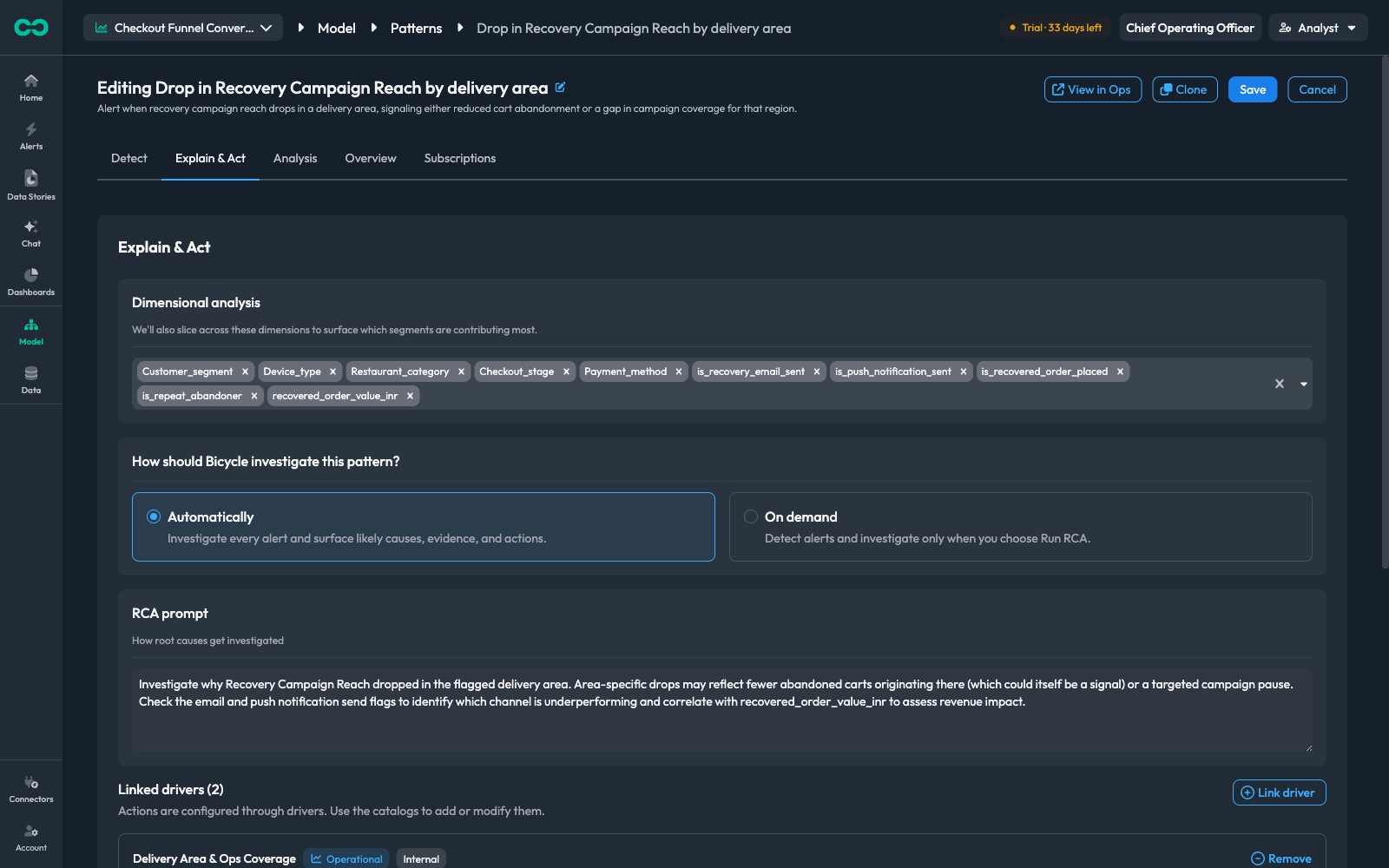
Dimensional analysis
The dimensions Bicycle slices across when explaining a detection — separate from the dimensions in Scope, which decide where the pattern looks. These decide how a finding is broken down once it exists.
When a pattern flags a drop in one delivery area, these are the cuts it tries in order to say which customer segment, device type, or checkout stage accounts for it.
Add as many as are genuinely explanatory. Boolean flags work well here — in the example above, is_recovery_email_sent and is_push_notification_sent let the analysis point at a specific channel rather than just the affected area.
How should Bicycle investigate this pattern?
AutomaticallyInvestigate every alert and surface likely causes, evidence, and actions. The investigation is already done by the time anyone opens the alert. Email subscriptions on Standard or Detailed need this setting: their one email is sent when the analysis completes. When it runs and re-runs over an incident's life: Incidents and investigations.
On demandDefault: selectedDetect alerts, but investigate only when someone chooses Run RCA. Use this for high-volume patterns where investigating everything is not worth the cost. Email subscriptions on Standard or Detailed send nothing while this is selected; see When does a subscription send?.
RCA prompt
Free text telling the investigation what to look at and what the likely explanations are. This is where domain knowledge belongs — the things an analyst on your team would know to check but a general-purpose investigation would not.
A good prompt names the specific hypotheses worth testing and the fields that distinguish them:
Investigate why Recovery Campaign Reach dropped in the flagged delivery area. Area-specific drops may reflect fewer abandoned carts originating there (which could itself be a signal) or a targeted campaign pause. Check the email and push notification send flags to identify which channel is underperforming and correlate with
recovered_order_value_inrto assess revenue impact.
Note what it does: it distinguishes a benign cause (fewer abandoned carts is good news) from a problem (a paused campaign), and it names the exact fields that tell them apart.
The RCA prompt and the Automatically / On demand setting both save in place — they change only how a finding is investigated after the fact, never detection itself, so editing them never creates a new pattern.
Linked drivers
Drivers are the named causes a pattern can be attributed to, and they carry the actions that fire in response. A pattern links to drivers; the actions belong to the driver, not the pattern.
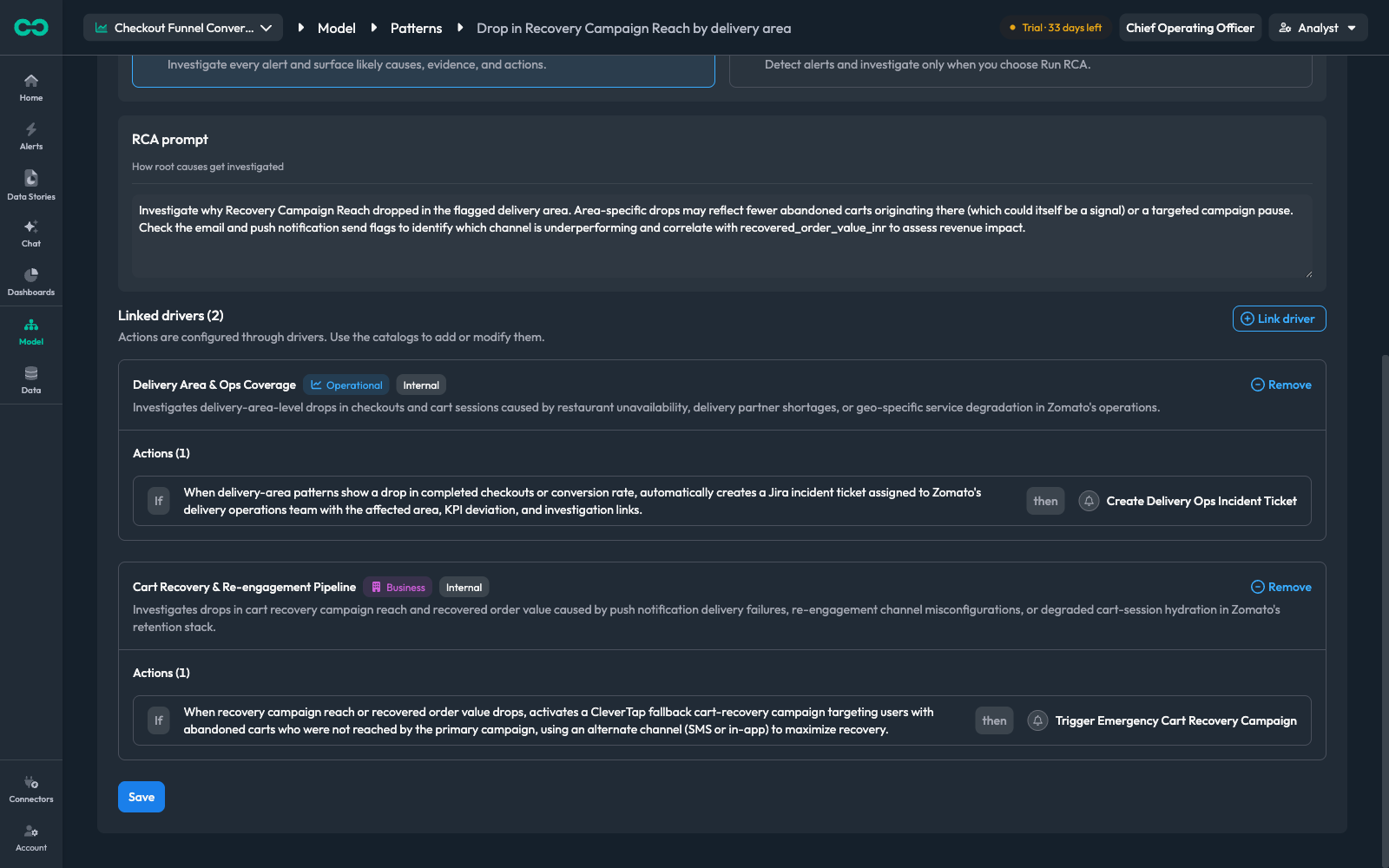
Each linked driver shows its type — Operational or Business — its scope, a description of what it investigates, and its actions. Each action reads as an if / then rule:
| If | When delivery-area patterns show a drop in completed checkouts or conversion rate, automatically creates a Jira incident ticket assigned to the delivery operations team with the affected area, KPI deviation, and investigation links. |
| then | Create Delivery Ops Incident Ticket |
Use Link driver to attach an existing driver, and Remove to detach one. Actions themselves are configured in the driver and action catalogs, reachable from the Drivers and Actions tabs at the top of the Model section — not from the pattern.
Reviewing the result
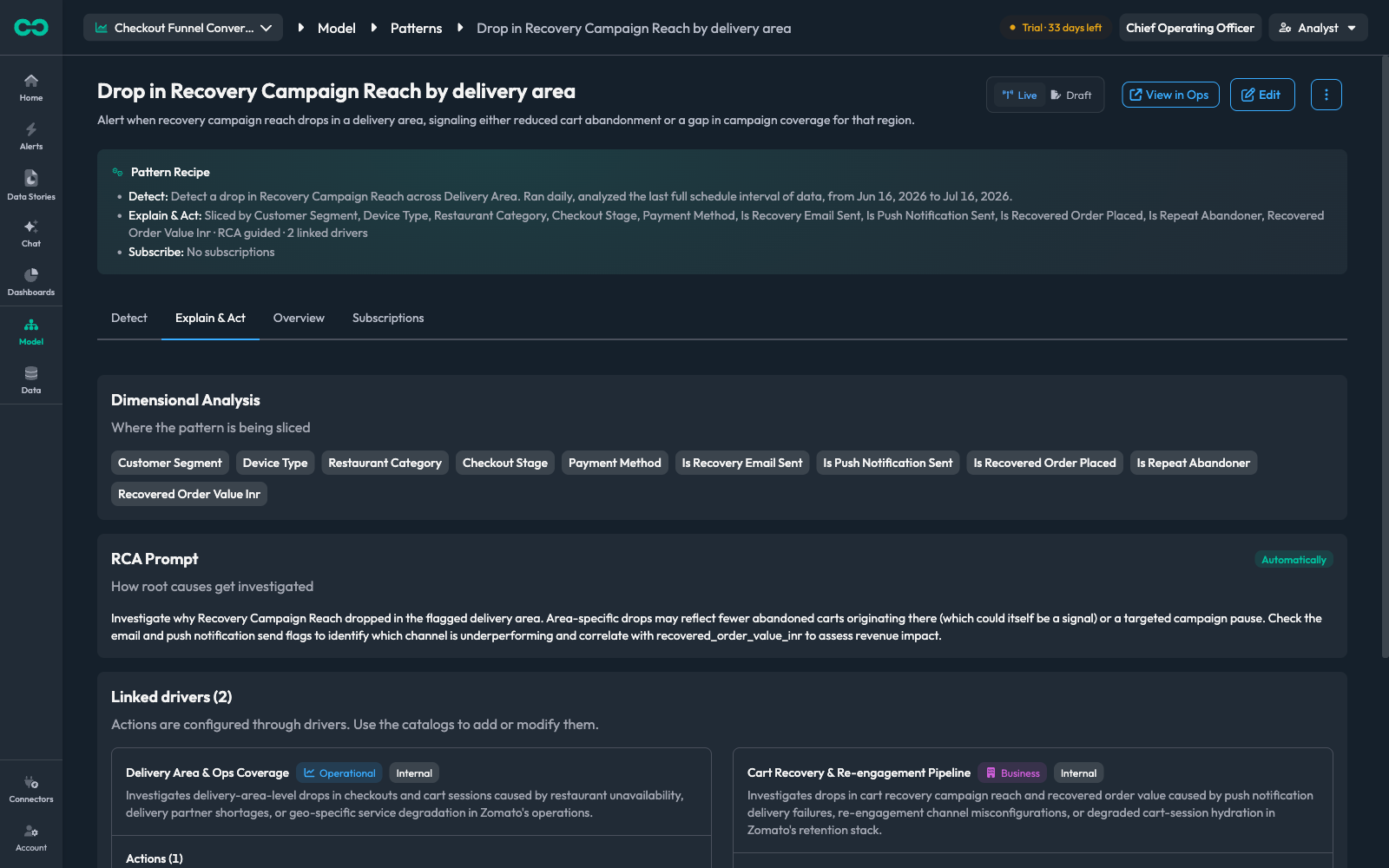
The same information appears read-only on the pattern's detail view, which is the faster way to check a pattern you are not editing.
Next: Incidents and investigations — what happens to an incident run by run, and when the investigation runs.