Manage patterns
Model → Patterns lists every pattern for the selected use case.
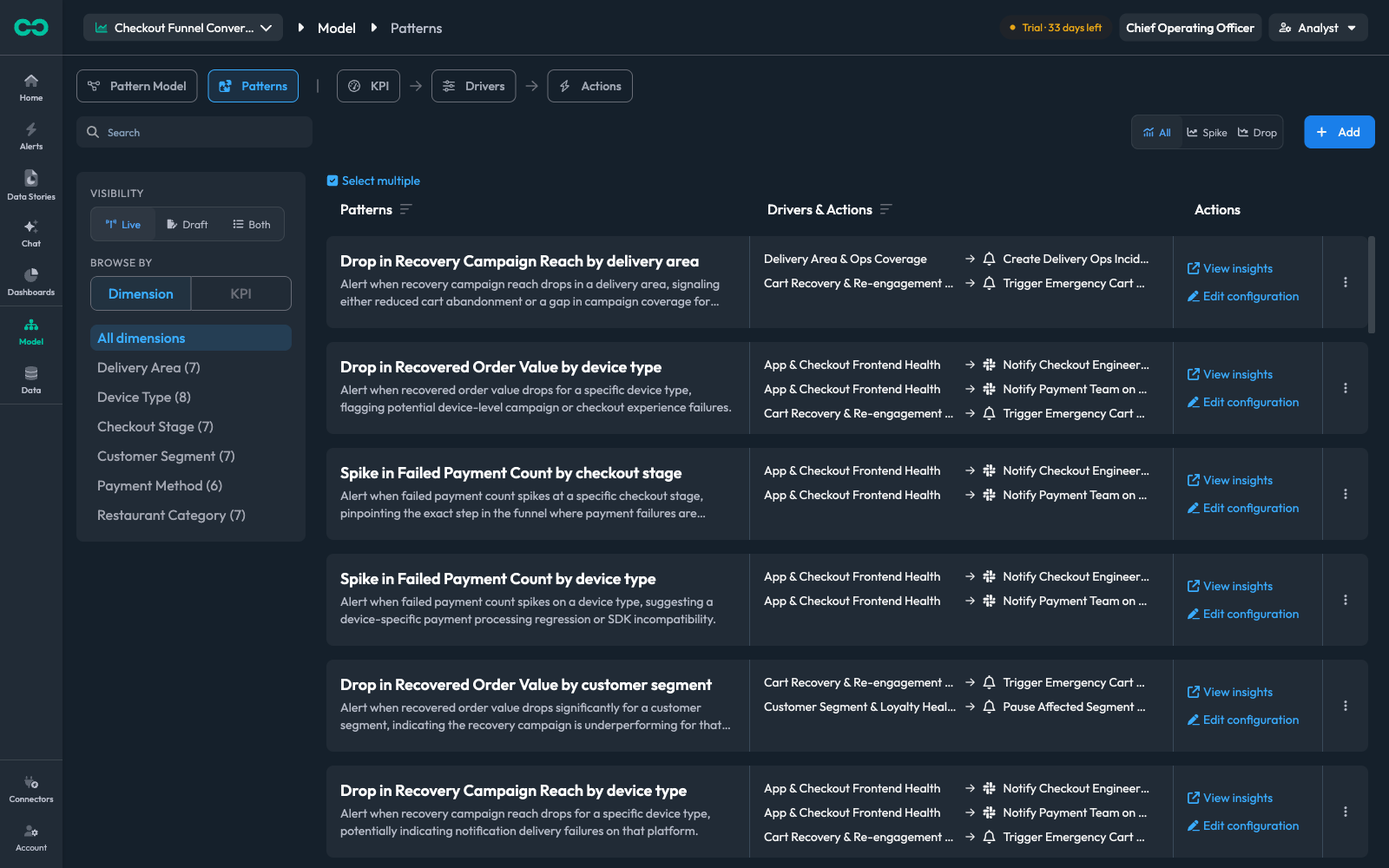
The list is scoped to the use case in the top-left picker. With All analytics agents selected the page shows "Select a use case to continue" — pick one to load its patterns.
Finding a pattern
| Control | What it does |
|---|---|
| Search | Filters by pattern name |
| Visibility | Live, Draft, or Both. Opens on Live, so drafts are opt-in |
| Browse by | Group the list by Dimension or by KPI |
| All / Spike / Drop | Filter by the direction each pattern watches |
Under Browse by → Dimension, each dimension shows how many patterns use it — Delivery Area (7), Device Type (8). That count is a quick coverage check: a dimension your team cares about with no patterns against it is a gap.
Each row shows the pattern's name and description, its linked Drivers & Actions, and two shortcuts — View insights and Edit configuration.
Select multiple enables bulk selection, which lets you flip several patterns between live and draft at once.
Editing can create a new pattern
This is the most important thing to understand about editing a pattern. Some edits save in place; others create a new pattern that supersedes the old one.
Saves in place:
- Pattern name and description
- The RCA prompt, and the Automatically / On demand setting
- Incident grouping
- Subscriptions (saved through their own API — they never touch the pattern config)
Creates a new pattern: changes to detection or the run window — the baseline, the aggregation strategy, LOO outlier screening, the Fire alert when rules, the schedule, or the analysis period.
When an edit falls into the second group, Bicycle shows a Save as new pattern dialog before writing anything. It asks you to name the new pattern and confirm the run window. The original is deactivated and marked Superseded, and its linked drivers move across to the replacement.
A pattern's detection history is only meaningful under one rule. Changing the rule in place would leave a chart where half the anomalies were judged one way and half another. Forking keeps each pattern's history internally consistent.
Cloning
Clone, in the pattern header, copies a pattern's whole configuration into a new one you can edit before it is created. Use it to:
- Test a tuning change side by side with the original, with the clone kept as a draft
- Rebuild incident history under new grouping rules — clones backfill from scratch, while an in-place edit only applies going forward
- Create a matching pattern for the opposite direction, or for a different dimension
A clone is written as a single new pattern with your edits already applied, so no untouched intermediate pattern is left behind.
Lifecycle
A pattern is in exactly one of three states:
| Status | Meaning |
|---|---|
| Active | Running on its schedule |
| Paused | Not running. Its configuration and history are kept |
| Superseded | Replaced by a newer pattern that a forking edit created. Opening it points you at its replacement |
This is separate from live and draft, which controls only whether findings reach the feed. The two combine: a pattern can be active-and-draft (running, findings hidden), or active-and-live (running, findings delivered).
Deleting
The row menu on the patterns list deletes a pattern. Deleting removes the pattern and its schedule. If you only want it to stop firing, pause it instead — a paused pattern keeps its configuration and history, and can be resumed.
View in Ops
View in Ops, in the pattern header, opens the pattern's scheduled workflow runs in the operations console. Use it when a pattern is not producing results and you need to know whether it is actually executing — it shows each run, its status, and any failure.