Microsoft Entra ID SSO Integration
This guide walks IT administrators through configuring Microsoft Entra ID SAML single sign-on for Bicycle. You will:
- Create security groups for administrators, editors, and viewers
- Create and configure a non-gallery enterprise application
- Set the required SAML claims and access controls
- Assign the groups to the application
- Share the Login URL, Microsoft Entra Identifier, group names, and SAML certificate with Bicycle
You need Global Administrator or Application Administrator access to your Microsoft Entra tenant.
For an overview of Bicycle SAML (Entity ID, ACS URL, and Bicycle Admin fields), see SAML Integration.
Step 1: Create Groups
Bicycle uses three security groups for role-based access. Create them in the Microsoft Entra admin center.
Open Microsoft Entra admin center
- Go to https://entra.microsoft.com.
- From the left navigation, select Entra ID → Groups → All groups.
- Click New group.
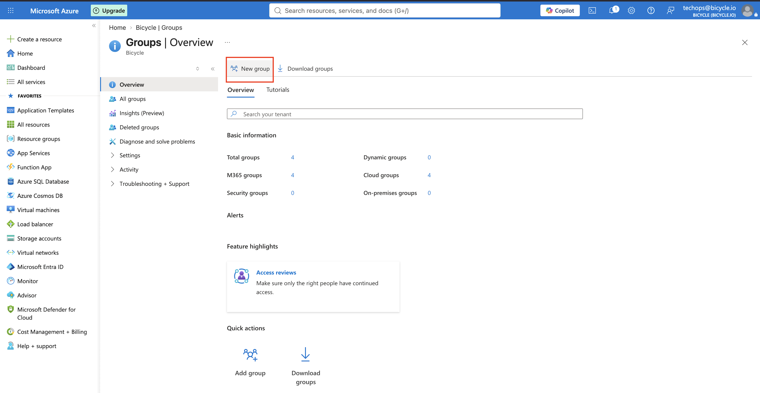
Create the Admin group
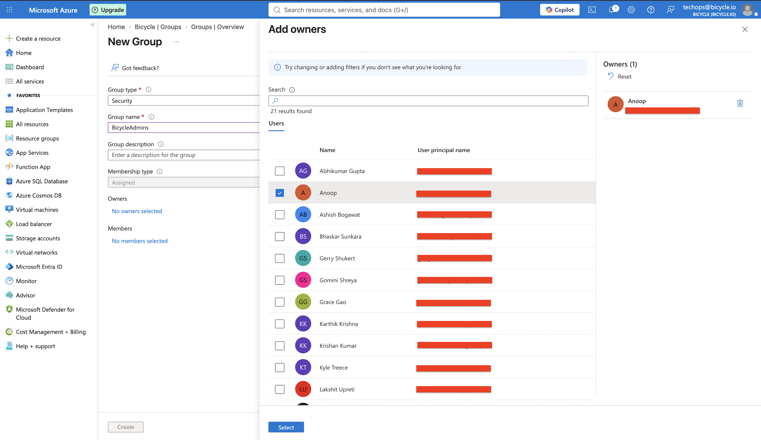
On the New Group page, configure:
| Setting | Value |
|---|---|
| Group type | Security |
| Group name | BicycleAdmins |
| Membership type | Assigned |
| Description | Users who have Admin access to Bicycle |
You can optionally add group owners, then create the group.
Confirm the group appears under All groups:
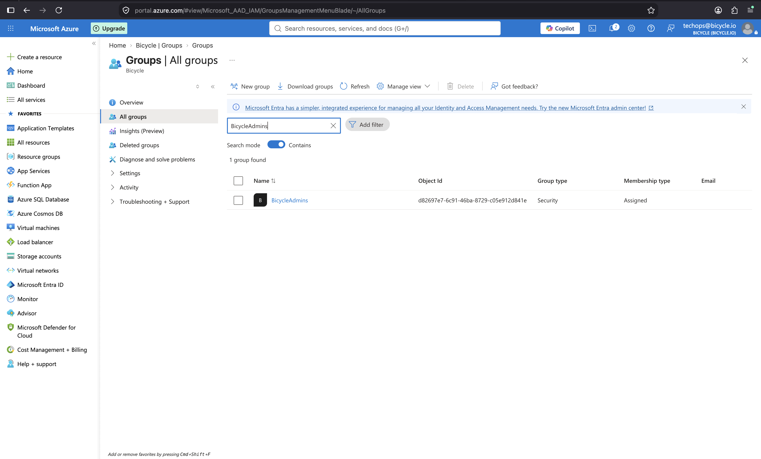
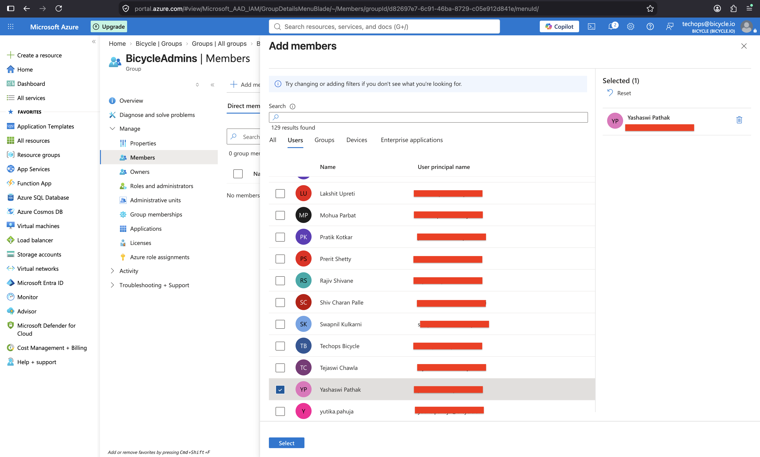
Add users to the group
- Open BicycleAdmins.
- Select Members → Add members.
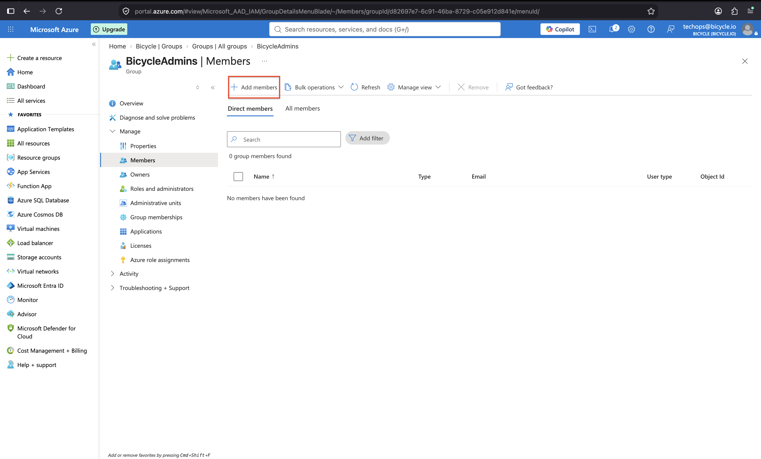
- Select the users who should have Bicycle Admin access.
Create the Editor and Viewer groups
Repeat the same process for:
| Setting | BicycleEditors | BicycleViewers |
|---|---|---|
| Group type | Security | Security |
| Group name | BicycleEditors | BicycleViewers |
| Membership type | Assigned | Assigned |
Add the appropriate users to each group.
You may use different group names. If you do, share the exact names with Bicycle so role mapping can be configured correctly.
Step 2: Create the SAML Enterprise Application
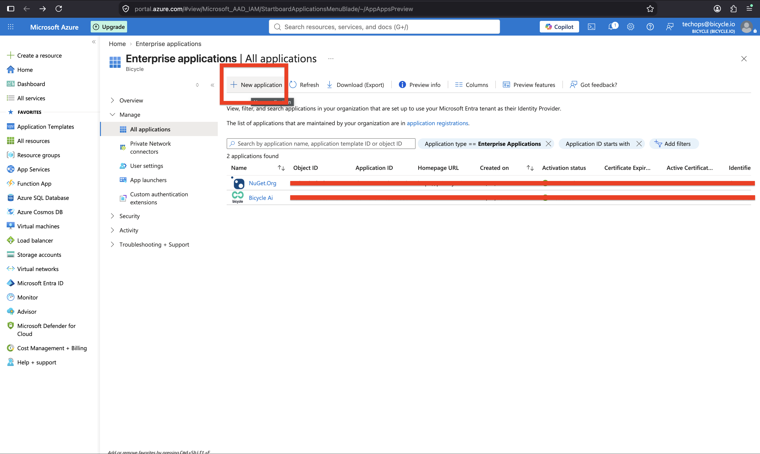
Open Enterprise Applications
- In the Microsoft Entra admin center, go to Entra ID → Enterprise applications.
- Click New application.
Create a custom application
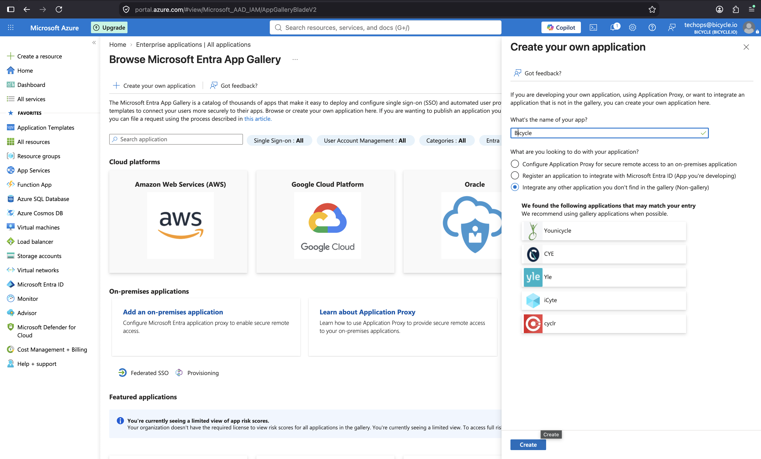
- Select Create your own application.
- Enter the name
Bicycle. - Choose Integrate any other application you don't find in the gallery (Non-gallery).
- Click Create.
Configure SAML SSO
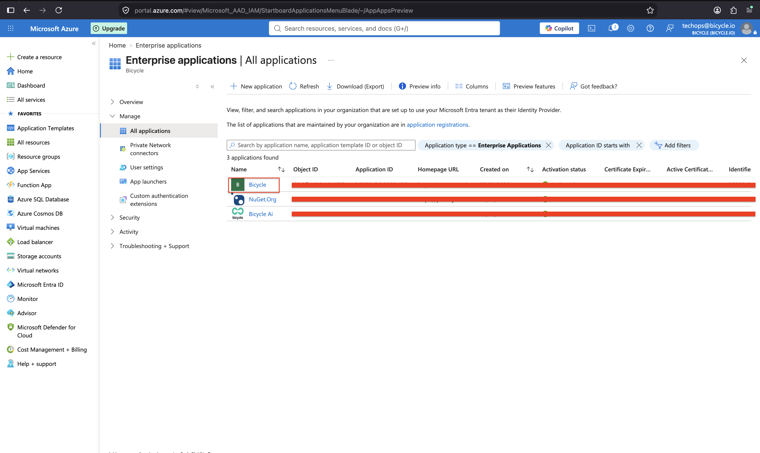
- Open the Bicycle enterprise application.
- Under Manage, select Single sign-on.
- Select SAML as the sign-on method.
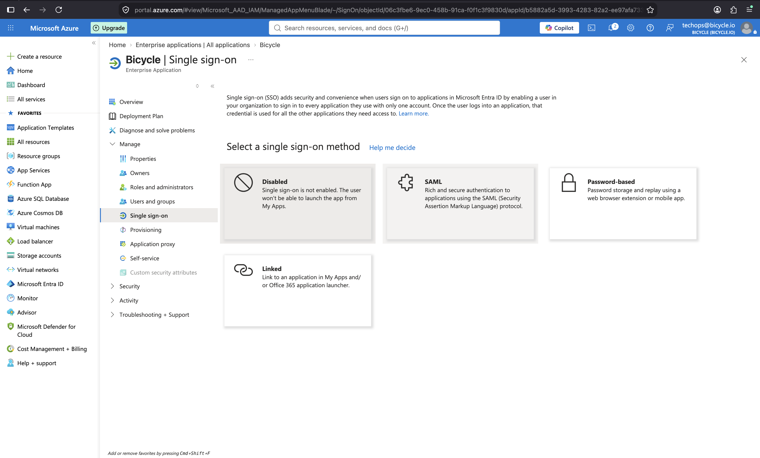
- Under Basic SAML Configuration, click Edit and set:
| Field | Value |
|---|---|
| Identifier (Entity ID) | https://app.bicycle.ai |
| Reply URL (Assertion Consumer Service URL) | https://app.bicycle.ai/api-proxy/api/tenants/auth/login/saml/callback |
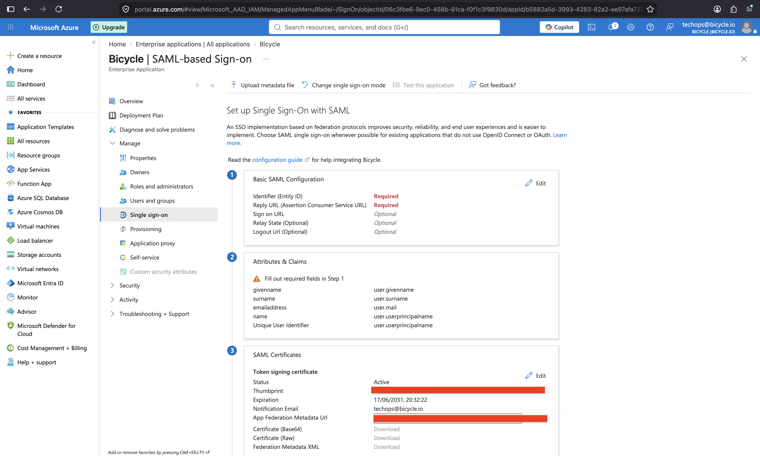
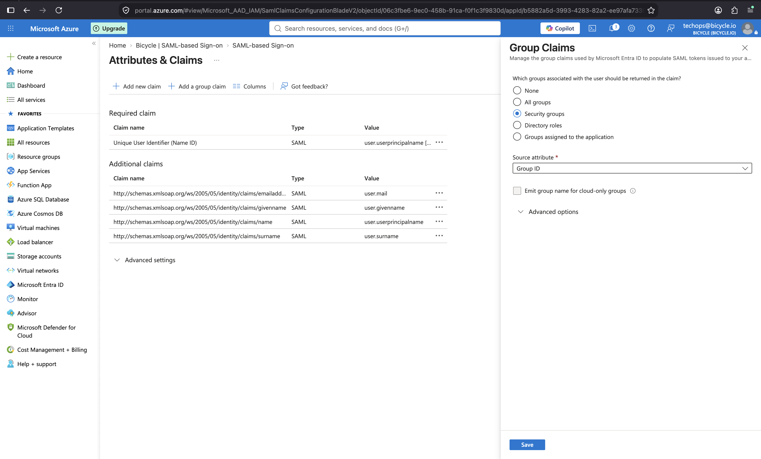
Attributes & Claims
- Click Edit on Attributes & Claims.
- Configure the Unique User Identifier (Name ID) to use the user's email address:
| Setting | Value |
|---|---|
| Name identifier format | Email address |
| Source | Attribute |
| Source attribute | user.mail |
- In Group Claims, select Groups assigned to the application.
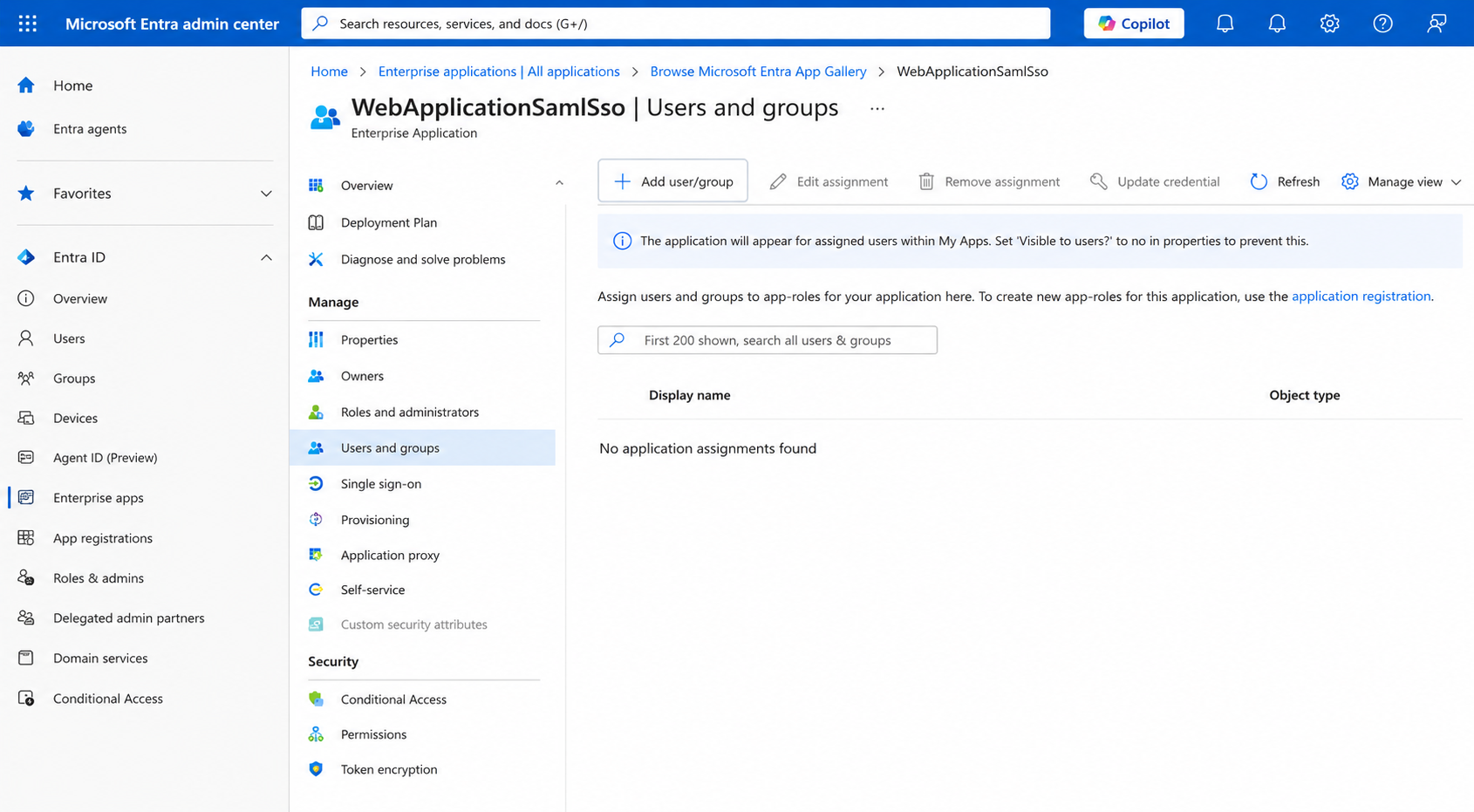
Assign Bicycle groups to the application
- Go to Bicycle → Users and groups.
- Click Add user/group.
- Assign all three groups:
BicycleAdminsBicycleEditorsBicycleViewers
Configure application access
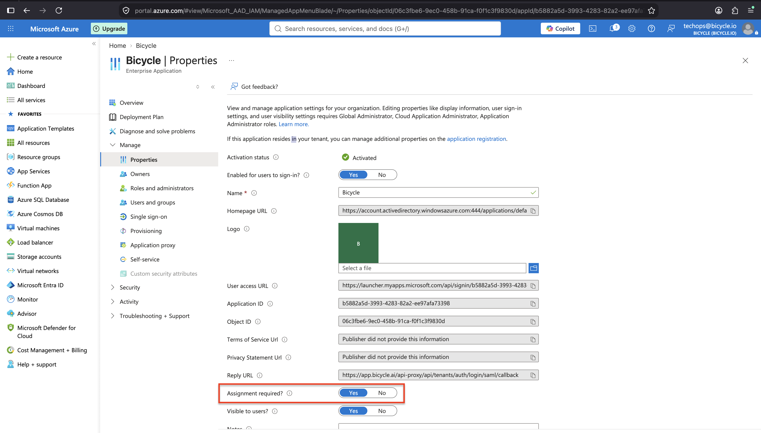
- Open Bicycle → Properties.
- Set Assignment required? to Yes.
This ensures only users and groups assigned to the Bicycle enterprise application can access it.
Artefacts to share with Bicycle
When configuration is complete, share these five items with your Bicycle contact:
| Artefact | Description |
|---|---|
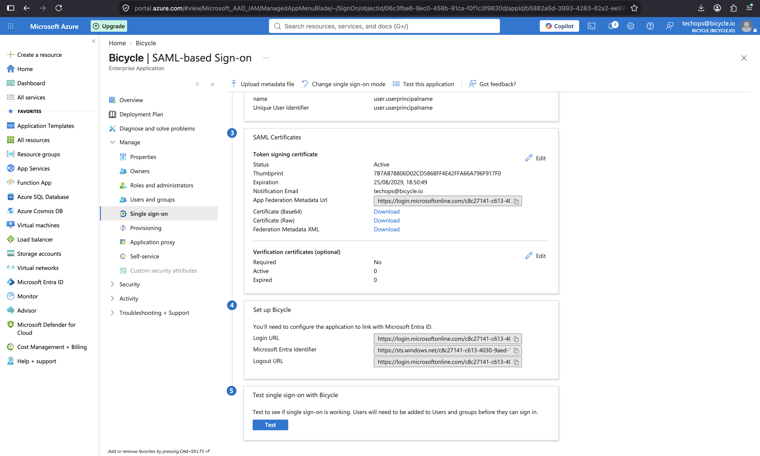
| Login URL | From the Login URL field on the Single sign-on tab (SP → IdP entry point) |
| Microsoft Entra Identifier | From the Microsoft Entra Identifier field on the Single sign-on tab |
| Group names | Exact names of the security groups (for example, BicycleAdmins, BicycleEditors, BicycleViewers) |
| SAML certificate | Download Certificate (Base64) from the Single sign-on tab |
| Email domain | Your organization email domain |
The screenshot below shows where to find the Login URL, Microsoft Entra Identifier, and certificate download:
Bicycle will enter these values in Admin → Authentication and map your groups to Admin / Editor / Viewer. See Configure SSO in Bicycle.
Need help?
Contact your Bicycle implementation team or email support@bicycle.ai.