Okta SSO Integration
This guide walks IT administrators through configuring Okta SAML 2.0 single sign-on for Bicycle.
You need an Okta administrator account that can manage Directory → Groups and Applications.
For Entity ID, ACS URL, and Bicycle Admin fields, see SAML Integration.
Step 1: Create groups
Bicycle has three roles — Admin, Editor, and Viewer — so you can either:
- Create one group for each of the three roles, or
- Create groups for Admin and Editor only, and have Bicycle treat any other user who can sign in as Viewer
Create a group
- In the Okta Admin Console, go to Directory → Groups.
- Click Add group.
- Enter a name (for example,
BicycleAdmins) and an optional description, then click Save. - Repeat for each group you need (for example,
BicycleEditors,BicycleViewers).
| Group name (example) | Bicycle role |
|---|---|
BicycleAdmins | Admin |
BicycleEditors | Editor |
BicycleViewers | Viewer |
Prefix group names with Bicycle or bicycle- so they are easy to find. You may use different names — share the exact names with Bicycle for role mapping.
Assign people to groups
- Open Directory → Groups and select a Bicycle group (for example,
BicycleAdmins). - Open the People tab → Assign people.
- Add the users who should have that Bicycle role, then click Save.
- Repeat for the other Bicycle groups.
Groups are now ready for Bicycle.
Step 2: Create a SAML app for Bicycle
- Go to Applications → Applications.
- Click Create App Integration.
- Choose SAML 2.0, then click Next.
- On General Settings, set the app name to
Bicycle(optional logo / description), then click Next.
Configure SAML settings
On the Configure SAML page, enter:
| Field | Value |
|---|---|
| Single sign-on URL (ACS) | https://app.bicycle.ai/api-proxy/api/tenants/auth/login/saml/callback |
| Audience URI (SP Entity ID) | https://app.bicycle.ai |
| Default RelayState | (optional) leave blank unless Bicycle provides one |
| Name ID format | EmailAddress |
| Application username |
Use the ACS URL and Entity ID your Bicycle contact confirms if your environment differs from the defaults above.
Attribute statements (optional)
If Bicycle asks for an explicit email attribute in addition to Name ID:
| Name | Name format | Value |
|---|---|---|
email | Unspecified | user.email |
Group attribute statements
Add a group attribute so Bicycle receives role groups in the assertion:
| Name | Name format | Filter |
|---|---|---|
groups | Unspecified | Matches Bicycle* (or Equals each of BicycleAdmins, BicycleEditors, BicycleViewers) |
Click Next, choose whether this is an internal app for your org, then Finish.
Share SAML IdP details with Bicycle
- Open the Bicycle application → Sign On.
- Click View SAML setup instructions (or download Identity Provider metadata).
- Collect:
| Artefact | Okta field |
|---|---|
| SSO URL (Login / Entry Point) | Identity Provider Single Sign-On URL |
| Issuer (Entity ID) | Identity Provider Issuer |
| Certificate | X.509 Certificate (Base64) |
| Optionally | IdP metadata XML |
Step 3: Assign groups to the app
- Open the Bicycle application → Assignments.
- Click Assign → Assign to Groups.
- Assign
BicycleAdmins,BicycleEditors, andBicycleViewers(or assign individual users). - Click Save / Done.
You can also assign groups from Directory → Groups → [group] → Applications.
Configure Bicycle
A Bicycle admin completes setup under Admin → Authentication (Identity Provisioning / SAML SSO):
- Enable SAML SSO.
- Enter the Okta artefacts (or upload IdP metadata):
| Field | What to enter |
|---|---|
| Entry Point | Okta Identity Provider Single Sign-On URL |
| Issuer | Okta Identity Provider Issuer |
| Callback URL | Bicycle ACS URL (usually pre-filled) |
| Certificate | Okta X.509 certificate (Base64 / PEM) |
| Email domain | Your organization email domain |
- Map Okta groups to Bicycle roles:
| Bicycle role | Example Okta group |
|---|---|
| Admin | BicycleAdmins |
| Editor | BicycleEditors |
| Viewer | BicycleViewers |
- Save the configuration.
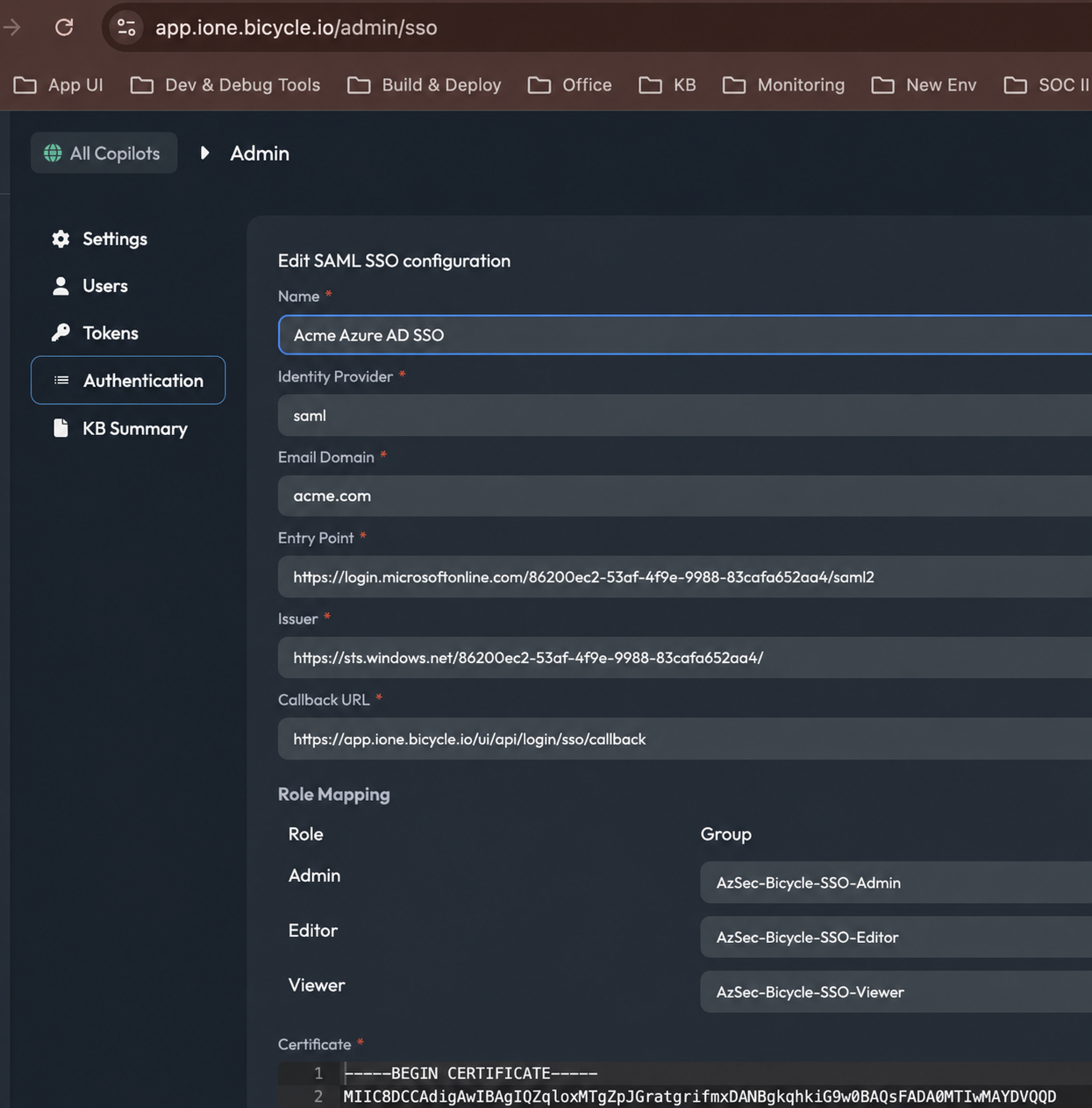
See Part 2: Bicycle platform configuration.
Artefacts to share with Bicycle
| Artefact | Source in Okta |
|---|---|
| SSO URL (Login URL) | Sign On → View SAML setup instructions |
| Issuer (Entity ID) | Same page |
| Certificate | X.509 Certificate (Base64) |
| Group names | Exact Okta group names |
| Email domain | Your corporate email domain |
Test sign-in
- From a user assigned to one of the Bicycle groups, open
https://app.bicycle.ai/{tenant}/login. - Choose SSO and complete Okta sign-in.
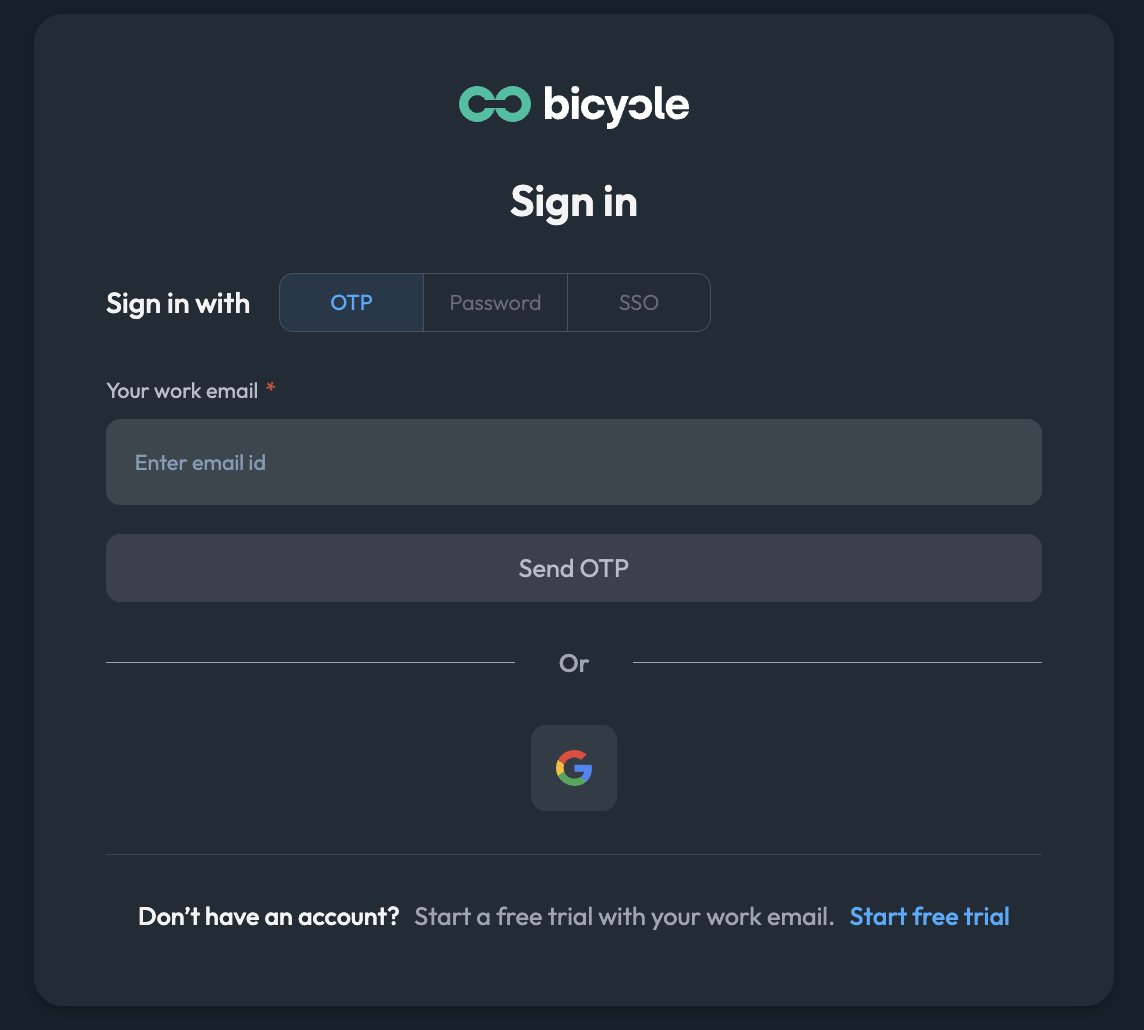
- Confirm the user lands in Bicycle with the expected role.
IdP-initiated login is also supported: users can open Bicycle from their Okta End-User Dashboard after the app is assigned.
Troubleshooting
If users cannot sign in:
- Confirm they are assigned to the Bicycle app and the correct
Bicycle*group - Confirm their email domain matches the domain configured in Bicycle
- Confirm the ACS URL and Audience URI match the values above
- Confirm the
groupsattribute filter includes your Bicycle groups - Review Okta System Log for SAML errors
Need help?
Contact your Bicycle implementation team or email support@bicycle.ai.