Onboard users
This guide shows you, click by click, how to add a new person to Bicycle.
In every picture, the orange boxes show where to click, and the numbers show the order.
- You must be an Admin in Bicycle. If you don't see Admin in the menu in step 1, ask an Admin to invite people for you.
- Does your company sign in to Bicycle with SSO (Okta, Microsoft Entra, Google)? Then skip to If your company uses SSO. The Invite User button is not shown for SSO workspaces.
Step 1: Open the Admin page
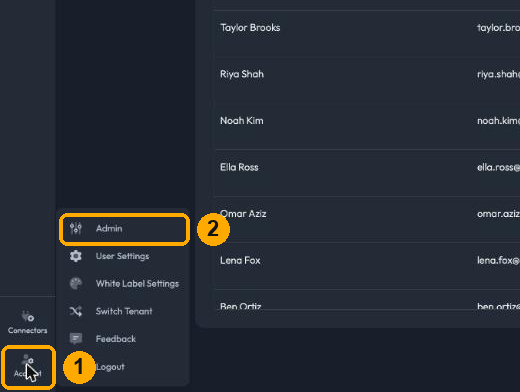
- At the bottom left, click Account.
- In the menu that opens, click Admin.
Step 2: Go to Users and click Invite User
- In the Admin menu on the left, click Users. You'll see everyone who already has access.
- At the top right, click the blue Invite User button.

Step 3: Fill in the invite form
-
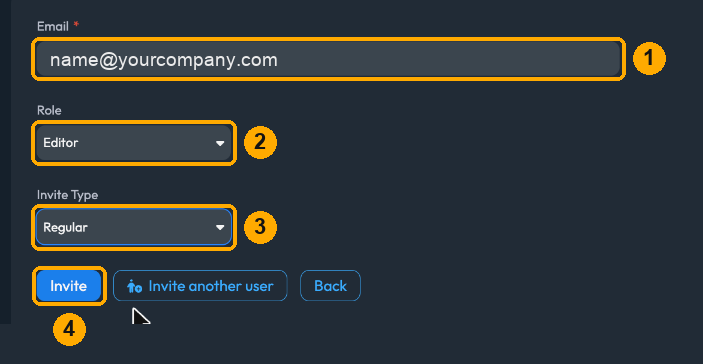
Email: type the person's work email.
-
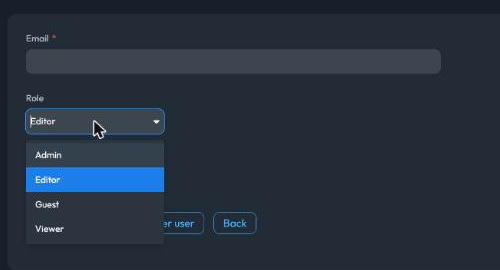
Role: choose what they can do in Bicycle. It starts on Editor. Not sure which to pick? See Which role should I pick?
-
Invite Type: click the dropdown and choose Regular. It starts on Magic, so make sure you change it.
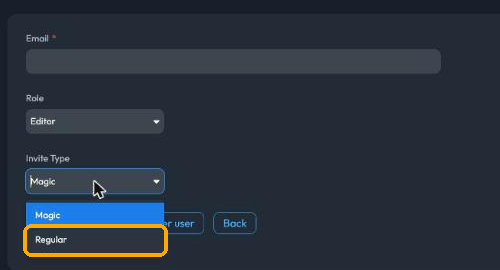
With Regular, Bicycle emails the invite to the person for you.
-
Click Invite.
Step 4: Check that the invite went out
A green Invite sent to user message appears under the buttons. That's it: Bicycle has emailed the person.

Want to invite someone else? Click Invite another user to clear the form and start again.
Step 5: The person accepts the invite
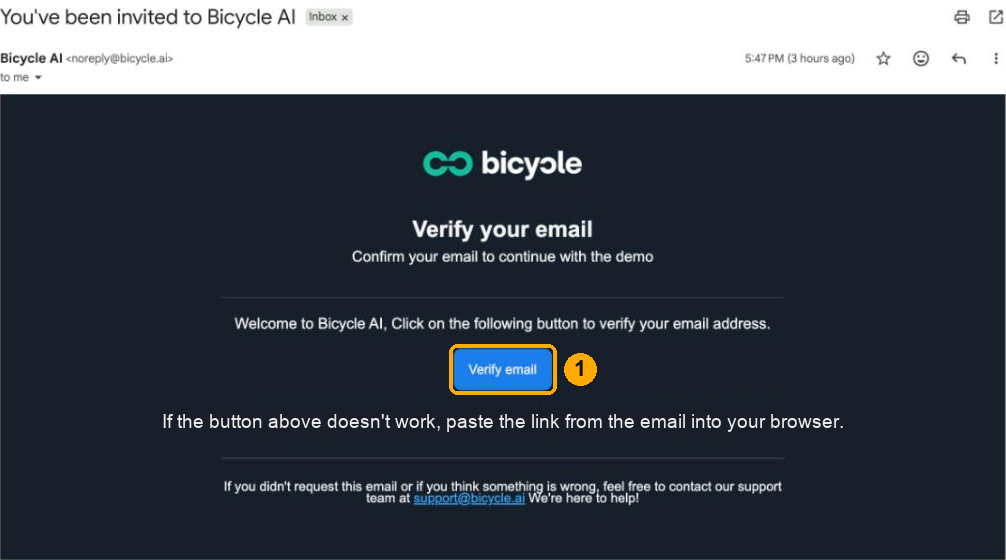
The person gets an email from Bicycle AI (noreply@bicycle.ai) with the subject You've been invited to Bicycle AI.
They click Verify email (1) and follow the steps on the screen to join Bicycle. Once they've joined, they show up in your Users list.
If the person didn't get the email
Sometimes the invite email doesn't arrive, or ends up in spam. Here's what to do.
First, ask the person to check their spam or junk folder. Ask them to search for "You've been invited to Bicycle AI" from noreply@bicycle.ai.
Still not there? Send them the invite link yourself:
-
Go to Account → Admin → Users (steps 1 and 2 above).
-
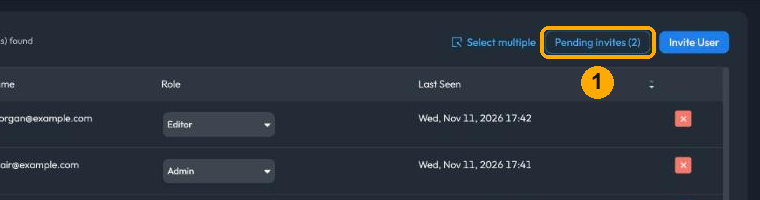
At the top right, click Pending invites (1). The number in brackets is how many invites are still waiting.
-
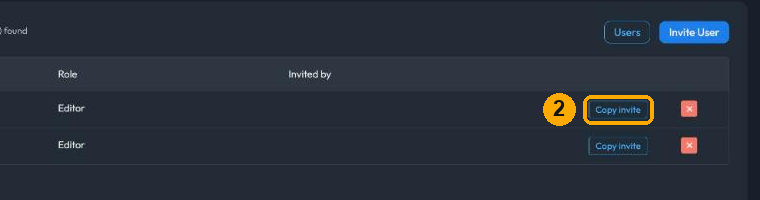
Find the person in the list, then click Copy invite (2) on their row. You'll see Link copied to clipboard.
-
Paste the link into a message to the person on Slack, Teams or email.
-
Ask them to open the link and follow the steps on the screen to join Bicycle.
Don't see the person under Pending invites? Then they've already joined (check the Users list), or the invite was cancelled. If it was cancelled, send a new invite.
Which role should I pick?
Pick the smallest role the person needs. You can change it later (see Change someone's role).
| Role | Pick it for people who… |
|---|---|
| Viewer | Only need to look: read dashboards, KPIs and data stories, and ask questions in Chat. |
| Editor | Need to build and change things: KPIs, patterns, dashboards, data stories and actions. |
| Admin | Need to run the workspace: invite and remove people, change roles and manage settings. |
You'll also see Guest in the list. Check with your Bicycle contact before you use it.
Cancel an invite
Invited the wrong address, or the person no longer needs access?
- Go to Account → Admin → Users, then click Pending invites at the top right.
- Click the red × (2) on that person's row. The invite link stops working straight away.
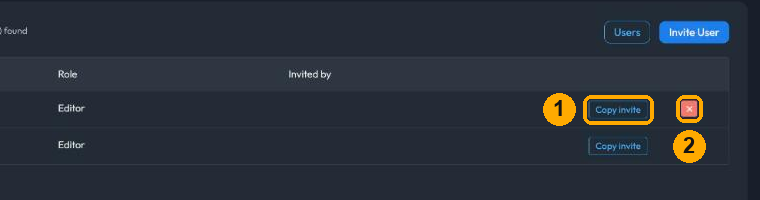
Click Users at the top right to go back to the full list.
Change someone's role
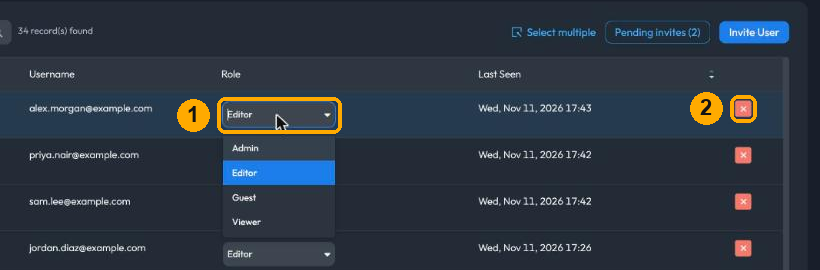
- Go to Account → Admin → Users.
- Find the person, then click the dropdown in the Role column (1).
- Pick the new role. It saves straight away; there's no Save button.
Remove someone
- Go to Account → Admin → Users.
- Click the red × at the end of the person's row (2 in the picture above).
- Click Remove to confirm.
They lose access to Bicycle straight away. To bring them back later, invite them again.
Click Select multiple at the top of the list, tick the people you want to remove, click the red Delete button, then click Delete again to confirm.
If your company uses SSO
If your company signs in to Bicycle with SSO, you don't invite people inside Bicycle. Your IT team gives people access through your identity provider instead (Okta, Microsoft Entra, Google and so on).
To add someone:
- Ask your IT team to add the person to the right Bicycle group, for example
BicycleViewers,BicycleEditorsorBicycleAdmins. The group decides the person's role. - Ask the person to go to
https://app.bicycle.ai/{tenant}/login({tenant}is your company's workspace name), click SSO, and sign in once. That first sign-in creates their account.
To change someone's role, IT moves them to a different group. To remove someone, IT takes them out of the Bicycle groups.
Setting up SSO for the first time? See SAML Integration and the guides for Microsoft Entra, Google and Okta.
Something not working?
| Problem | What to do |
|---|---|
| I don't see Admin in the Account menu | You're not an Admin. Ask an Admin to invite people for you, or to make you an Admin. |
| I don't see the Invite User button | Your company uses SSO. Follow If your company uses SSO. |
| The person didn't get an email | Follow If the person didn't get the email. |
| The invite link doesn't work | The invite may have been cancelled or already used. Send a new invite. |
| The person has the wrong role | Change it in the Role column. See Change someone's role. |
| An SSO user can't sign in | Ask IT to check that they're in a Bicycle group and have access to the Bicycle app. See SAML troubleshooting. |
Still stuck? Email support@bicycle.ai.